Add Blank Page to PDF
Insert blank pages anywhere in your document, then click on one and type.
- Free to use
- Works on any device
- Deleted after processing
- Insert anywhere in the file
- Type on it in the full editor
- Same page size as the rest
- As many as you need
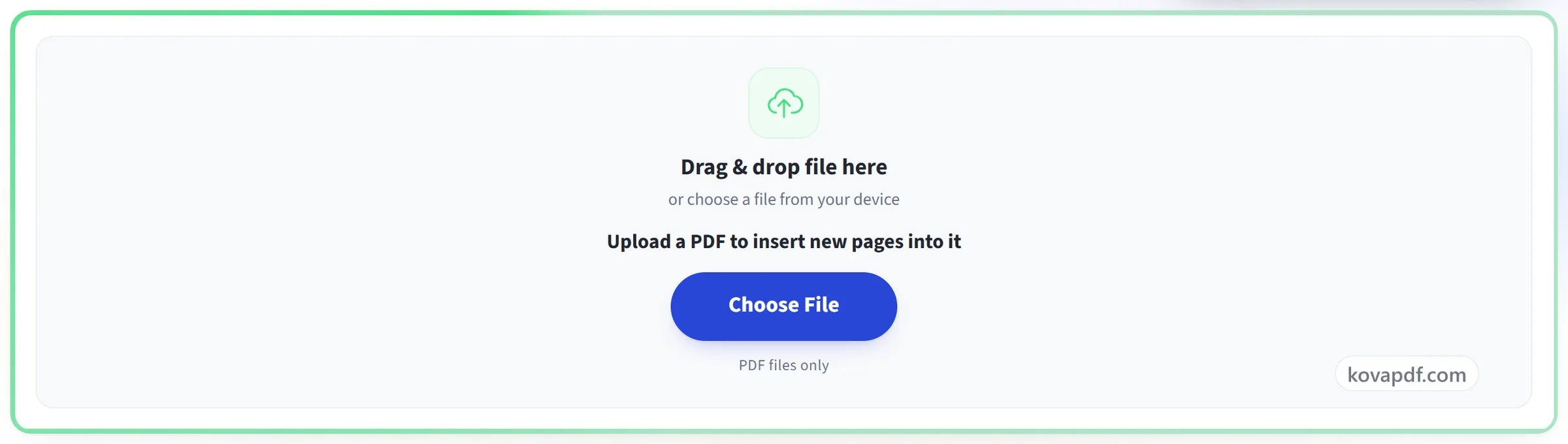
Drag & drop file here
or choose a file from your device
Upload a PDF to insert new pages into it
PDF files only
Everything Add Blank Page can do
Insert empty pages wherever you need them and start typing on them straight away.
Where the page goes
- Insert before any page, not only at the end
- One button for the start, one for the end
- Add several blank pages in a single step
- A sentence says how the numbering shifts
The new page
- Takes the size and orientation of its neighbours
- Type on it straight away, like a word processor
- Every editing tool works on it as on any page
As you go
- Undo puts the document back the way it was
- Add more pages without uploading the file again
- Move, turn or copy pages once they are in
Finishing
- Look through the whole document before downloading
- Download a real PDF with the new pages in it
- Carry on in the full editor from the same screen
How it works
Add Blank Page in three steps
Upload your PDF
Drag your file onto the upload panel, or click it to pick one from your device. Nothing is sent anywhere until you start the job, and the working copy is deleted the moment it finishes.
Insert pages where you need them
Choose the position and how many pages to add. New pages match the size of the document, so nothing shifts or rescales.
Type on them, then download
A blank page is a normal page. Click on it and type. Save Changes writes everything into the finished PDF.
Add Blank Page: a visual walkthrough
Insert empty pages anywhere in the document and start typing on them immediately.
Upload your PDF
Drag your file onto the upload panel, or click it to pick one from your device. Nothing is sent anywhere until you start the job, and the working copy is deleted the moment it finishes.
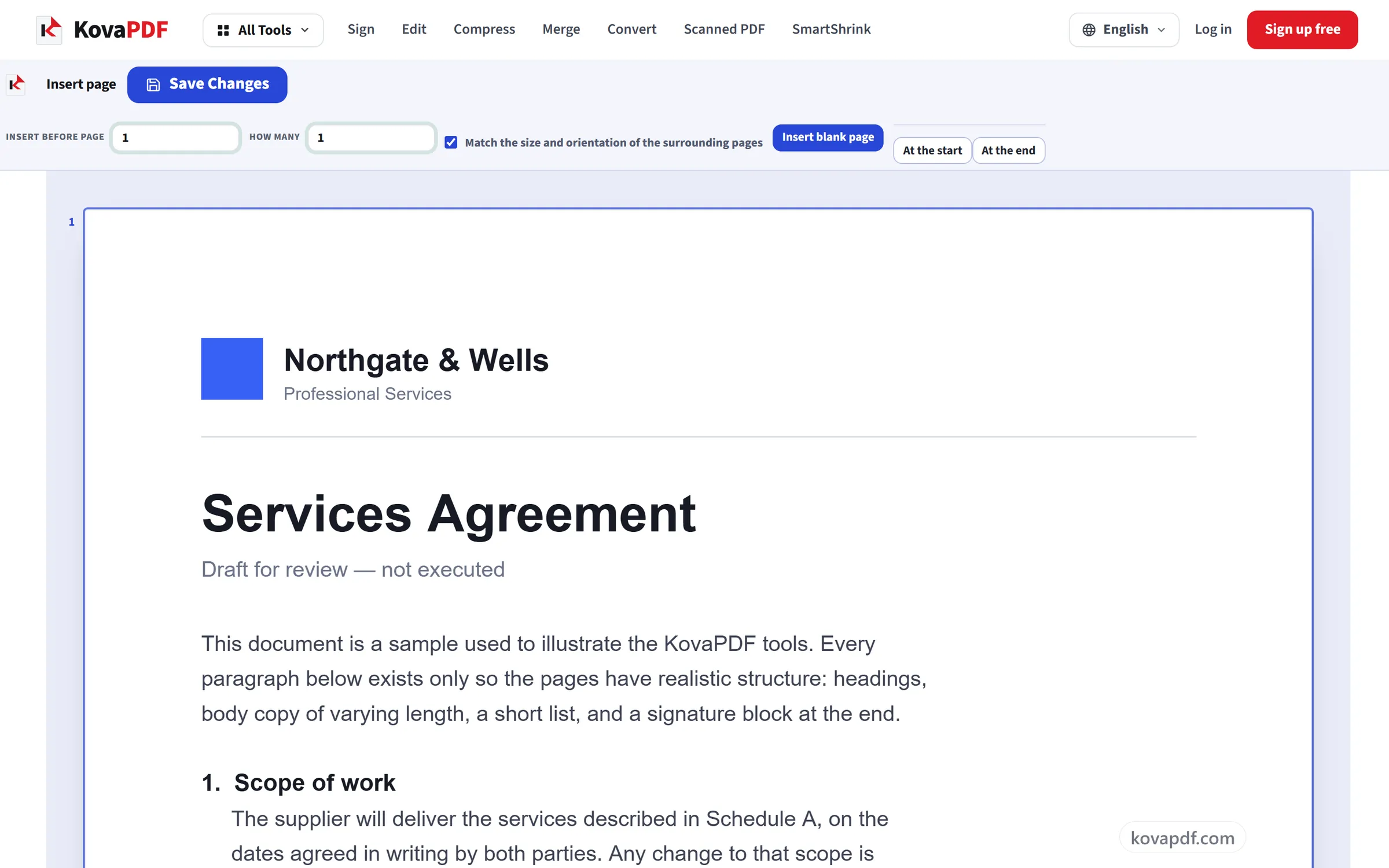
Insert pages where you need them
Choose the position and how many pages to add. New pages match the size of the document, so nothing shifts or rescales.
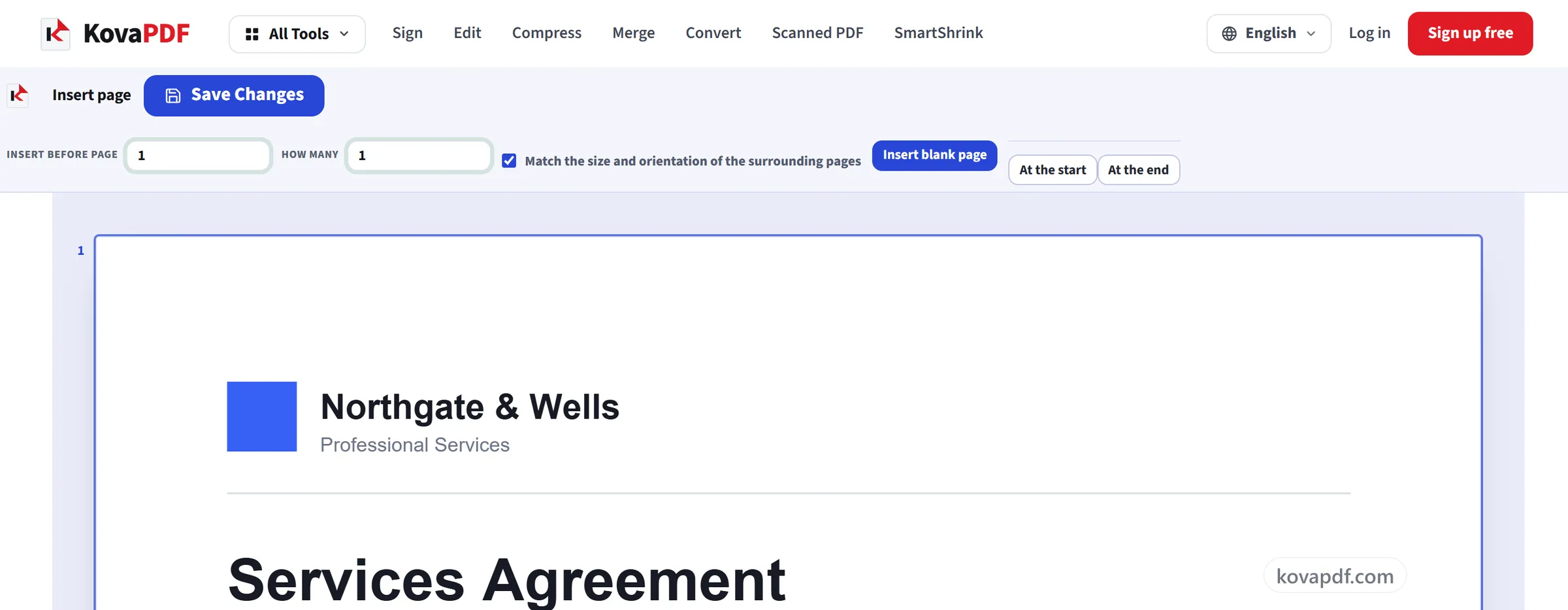
Type on them, then download
A blank page is a normal page. Click on it and type. Save Changes writes everything into the finished PDF.
Frequently asked questions about Add Blank Page
How do I add a blank page to a PDF?
Enter the page number the new page should go before, or press At the start or At the end, choose how many pages to add, and insert them. Then save and download the PDF.
Where does the new page go?
Wherever you want. Enter the page it should go before, from 1 up to one past the last page, so it can go between any two pages, for example a signature sheet after clause four.
Can I add several blank pages at once?
Yes, from 1 to 50 at a time. They are all inserted together at the position you chose.
What size are the inserted pages?
By default they take the size and orientation of the page you are viewing, so in a document where every page is the same size they match all the others. In a mixed document, open a page of the size you want before inserting.
Can I write on a blank page?
Yes. A blank page is a normal page. Click on it and type.
Why would I add a blank page at all?
Usually for printing and for signing. Double-sided documents need a chapter to start on a right-hand page, forms need somewhere to write, and a scanned bundle often needs a divider between two documents that were stapled together.
Is it free?
Yes. Every tool works without paying and without an account. Files can be up to 200 pages and 80 MB, and a run that fails costs you nothing.
Do I need to create an account?
No. All tools work without signing in. An account raises your hourly allowance and lets you see what you have processed.
What happens to my file?
Your file stays on our server only for a short time while it is processed, then it is deleted. It is sent over an encrypted connection. We keep a record that the tool was used, but not the file name or what is in the file.
Add Blank Page guides and articles
Related tools
All PDF tools · 15 step-by-step guides · How your files are handled