Split PDF
Extract a specific page range, or split every page into its own file. Each page keeps its original quality and selectable text.
- Free to use
- Works on any device
- Deleted after processing
- Pull out a page range
- Or break it into separate files
- Pages stay as they were
- The original is untouched
Split a PDF into separate files
Cut a document into one file per page, or pull out just the pages you need · your upload is deleted as soon as the result is built
Drag & drop file here
or choose a file from your device
Everything Split PDF can do
Pull a page range out of a PDF, or turn every page into a file of its own. Free, online, nothing to install.
Two ways to split
- Every page separately, as one single-page PDF per page
- Just these pages, gathered into one new PDF
- Both modes work from the same upload
Naming the pages
- Single pages, ranges, or both together: 1-3, 7, 12-14
- Commas or semicolons, spaced however you type them
- Pages come out in document order, each one only once
- The page box is checked as you type it
What comes out
- Separate pages arrive together in a ZIP
- Each file in the ZIP named by its page number
- A range comes back as a single new PDF
- The result screen says how many pages or files you got
What each page keeps
- Text stays selectable, not flattened to a picture
- Fonts, images and vector art copied across untouched
- Every page keeps its own size and rotation
- Your original document is left as it was
How it works
Split PDF in three steps
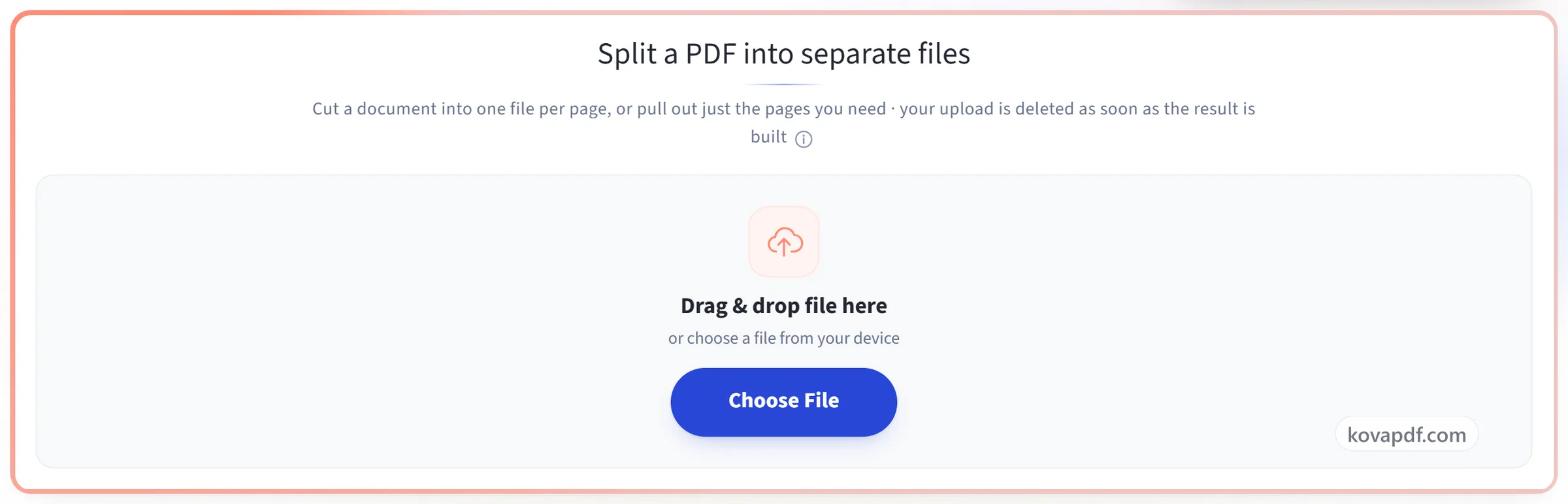
Upload your PDF
Drag your file onto the upload panel, or click it to pick one from your device. Nothing is sent anywhere until you start the job, and the working copy is deleted the moment it finishes.
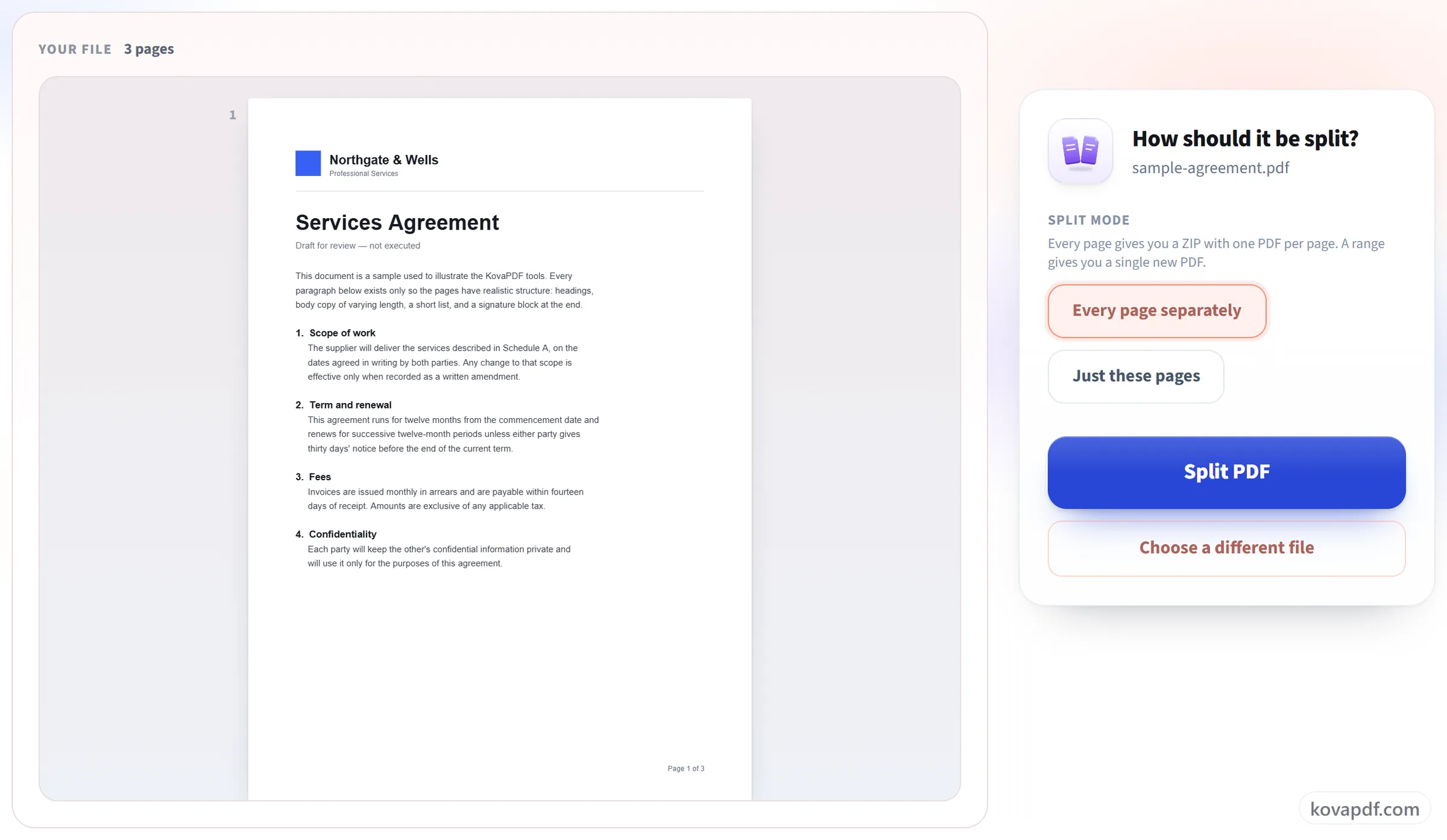
Choose how to split it
Extract a page range into its own file, or split every page into a separate document. The page count is shown so you can check the range before you run it.
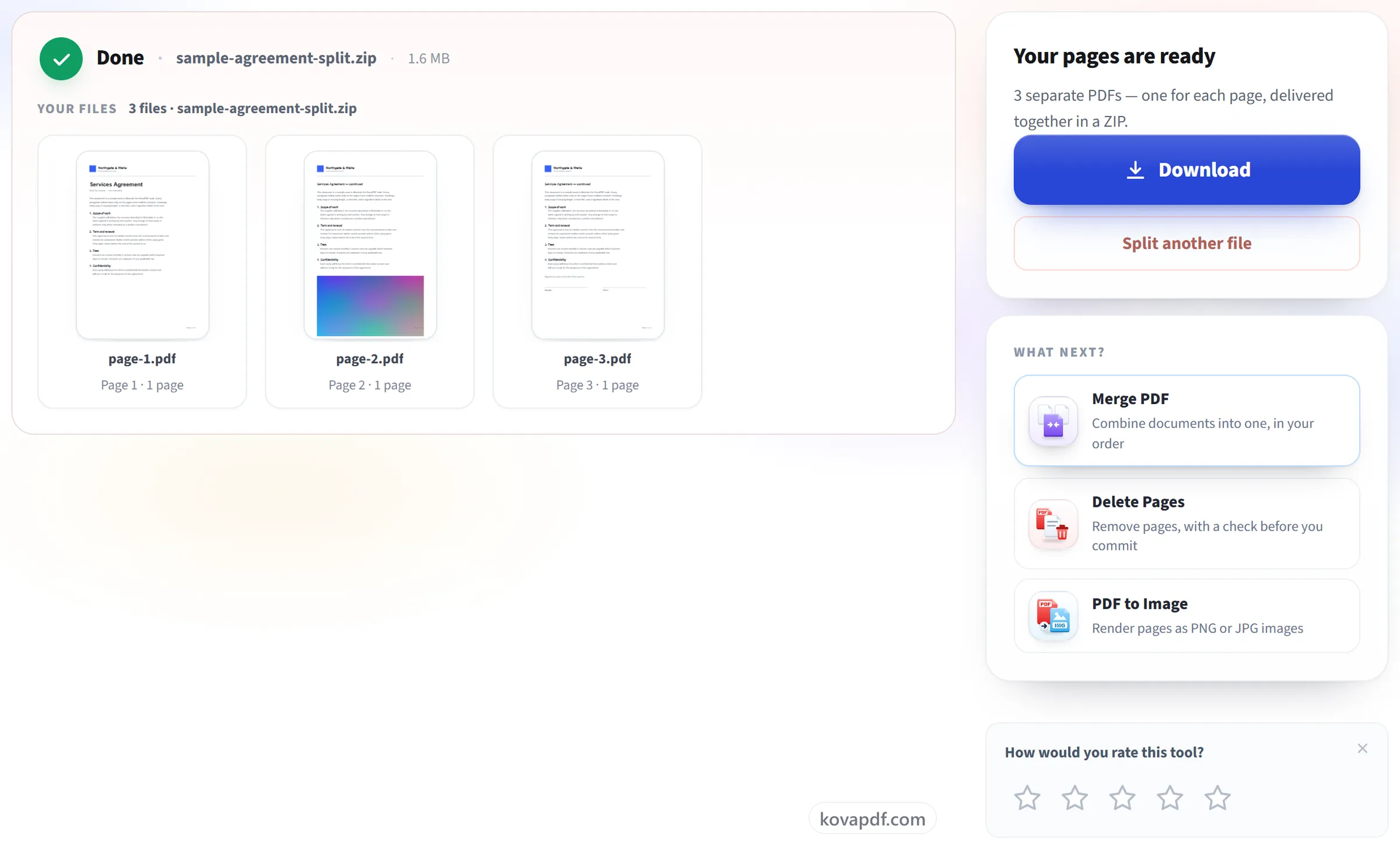
Split and download
Your results are ready immediately. The original file on your device is never modified.
Split PDF: a visual walkthrough
Pull out the pages you need, or break a long document into separate files.
Upload your PDF
Drag your file onto the upload panel, or click it to pick one from your device. Nothing is sent anywhere until you start the job, and the working copy is deleted the moment it finishes.
Choose how to split it
Extract a page range into its own file, or split every page into a separate document. The page count is shown so you can check the range before you run it.
Split and download
Your results are ready immediately. The original file on your device is never modified.
Frequently asked questions about Split PDF
How do I extract pages from a PDF?
Choose "Just these pages", type the pages you want, for example 1-3, 7, and press Split PDF. You get one new PDF containing only those pages, in the order they appear in the document, whatever order you typed them in. The original is left as it was.
How do I write a page range?
Hyphens for runs, commas for separate pages: "2-5, 9, 14-18". Pages are numbered from 1.
What is the difference between splitting and deleting pages?
Splitting produces new files and leaves the original alone. Delete Pages gives you the same document with pages removed. If you want to keep most of the document, Delete Pages is more direct.
Do I get one file back or several?
That depends on which you asked for. Naming a range gives you a single PDF containing those pages. Splitting every page gives you a zip with one PDF per page inside it, each named after the page it came from.
Can I split a PDF into several files by page range?
One range per run: whatever you type becomes a single PDF. To cut a document into, say, pages 1-10 and 11-20 as two files, run it twice, once with each range. "Every page separately" is the mode that returns many files at once.
Do the split pages keep their quality?
Yes. The pages are copied as they are. Text stays selectable, images keep their original resolution, and nothing is compressed.
Is it free?
Yes. Every tool works without paying and without an account. Files can be up to 200 pages and 80 MB, and a run that fails costs you nothing.
Do I need to create an account?
No. All tools work without signing in. An account raises your hourly allowance and lets you see what you have processed.
What happens to my file?
Your file stays on our server only for a short time while it is processed, then it is deleted. It is sent over an encrypted connection. We keep a record that the tool was used, but not the file name or what is in the file.
Split PDF guides and articles
Step-by-step
Related tools
All PDF tools · 15 step-by-step guides · How your files are handled