Merge PDF
Combine multiple PDF files into a single document. Reorder them freely before merging, and download the finished file instantly.
- Free to use
- Works on any device
- Deleted after processing
- Up to 30 files at once
- Your order, not ours
- Page sizes kept as they are
- One document back
Combine PDFs into one document
Pick two or more PDFs · they are merged in the order you set and deleted as soon as the new file is built
Drag & drop files here
or choose a file from your device
Everything Merge PDF can do
Join several PDFs into one document, in the order you decide.
Your order, not ours
- Combine two or more PDFs into a single document
- Move any file earlier or later before you merge
- Add more files to the set without starting the list again
- Take a file back out of the list
- Every file numbered in the position it will be joined at
See it before you merge
- Each file drawn as its own page, big enough to recognise
- Page count shown under every document
- A running total of the pages going in
- Start a fresh set straight from the result screen
What the joined file keeps
- Pages copied across exactly as they are
- Text arrives as real, selectable text
- Each file keeps its own page size and orientation
- Page rotation travels with the page it belongs to
- One merged PDF back, ready to download
How it works
Merge PDF in three steps
Upload your PDFs
Drag your file onto the upload panel, or click it to pick one from your device. Nothing is sent anywhere until you start the job, and the working copy is deleted the moment it finishes.
Put them in order
Every file you add appears in the list. Use the arrows to put them in the order you want the finished document to follow, and remove anything you added by mistake.
Merge and download
The files are joined into a single document with all pages intact. No re-compression, no quality loss.
Merge PDF: a visual walkthrough
Combine up to 30 documents into one, in exactly the order you want.
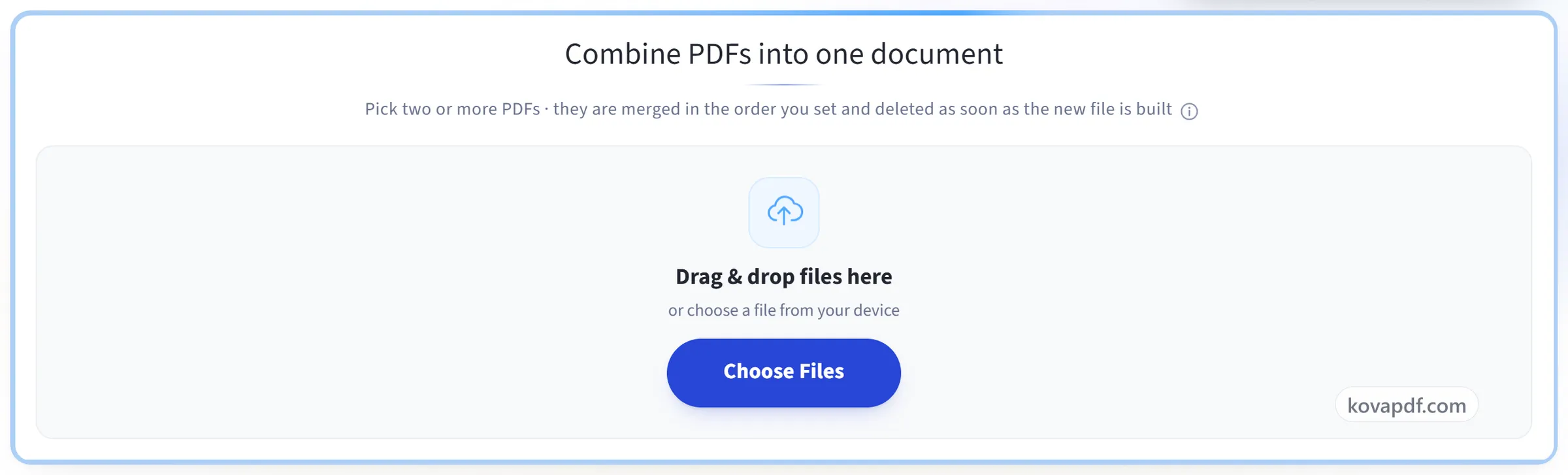
Upload your PDFs
Drag your file onto the upload panel, or click it to pick one from your device. Nothing is sent anywhere until you start the job, and the working copy is deleted the moment it finishes.
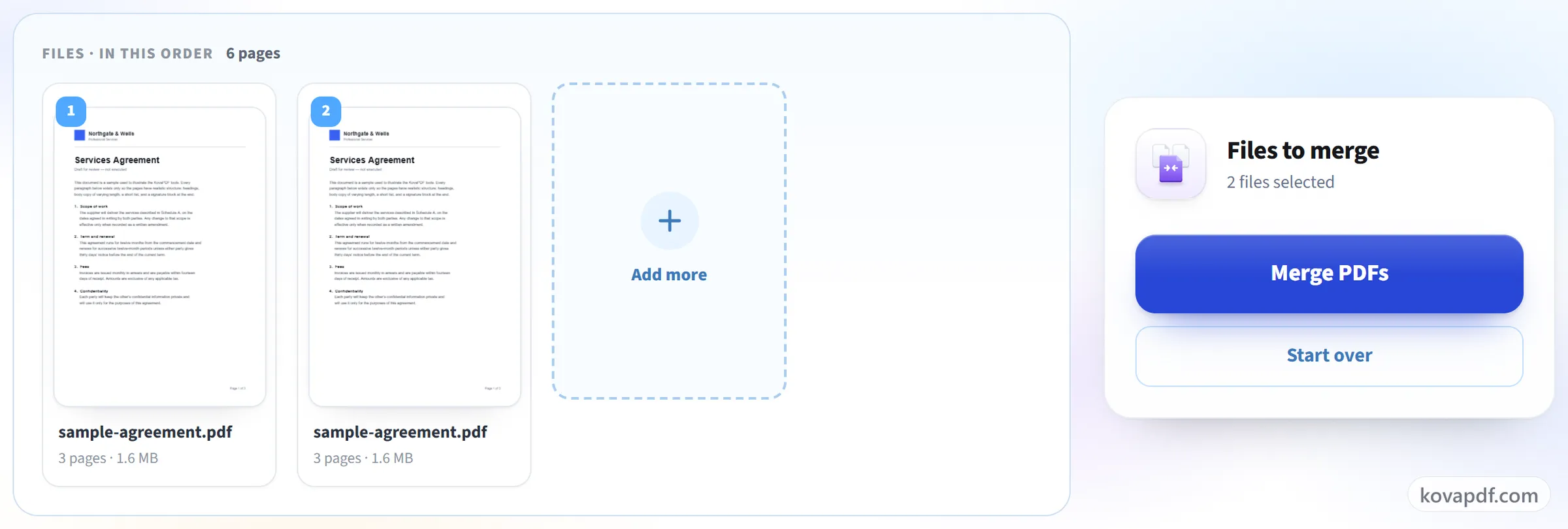
Put them in order
Every file you add appears in the list. Use the arrows to put them in the order you want the finished document to follow, and remove anything you added by mistake.
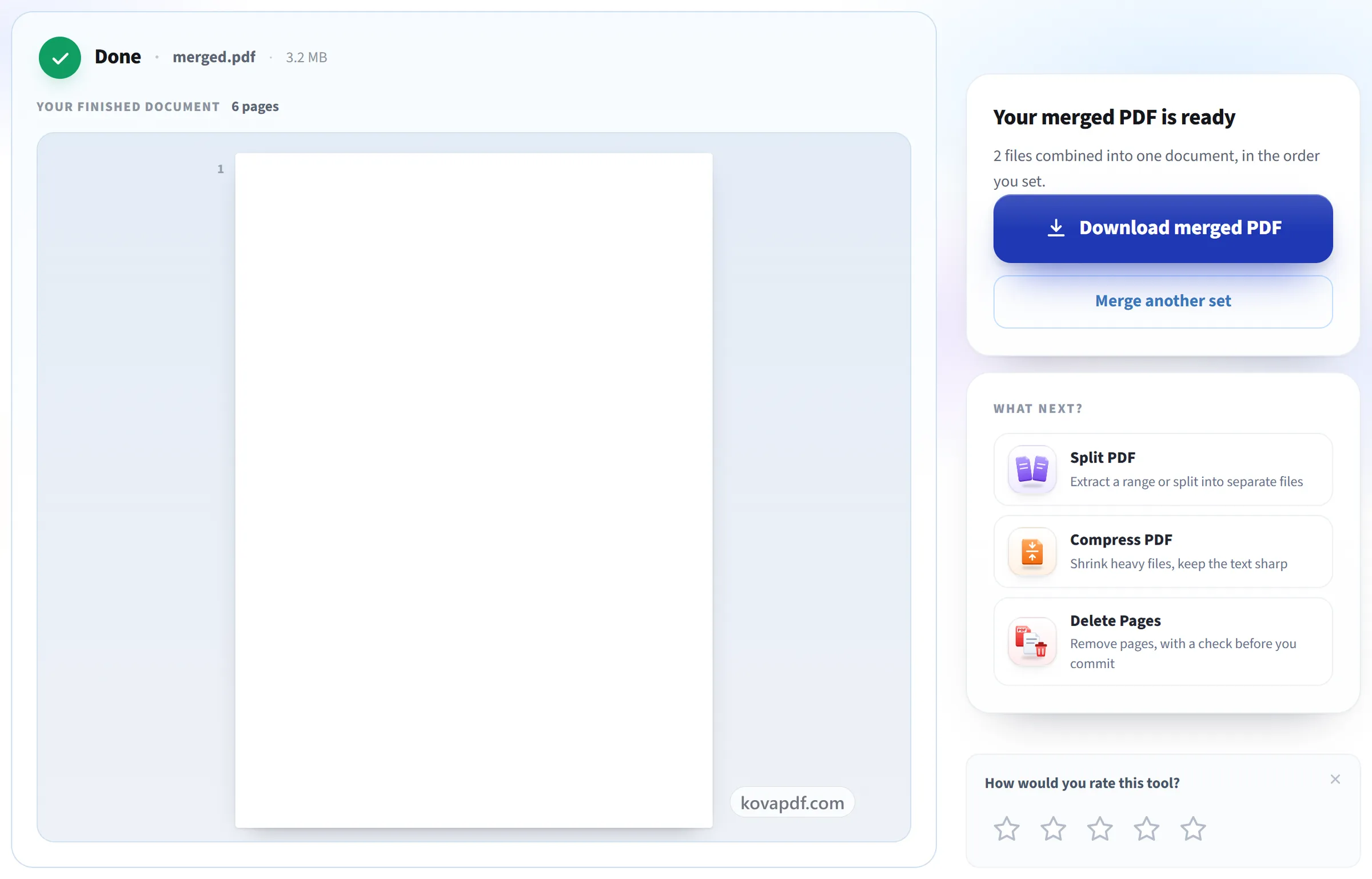
Merge and download
The files are joined into a single document with all pages intact. No re-compression, no quality loss.
Frequently asked questions about Merge PDF
How do I combine several PDFs into one file?
Add two or more PDFs, put them in the order you want, and press Merge PDFs. You get back a single PDF containing every page of every file, in that order. The files you uploaded are not changed.
How many files can I merge at once?
Up to 30 in a single operation, within the 200-page and 80 MB limits.
Can I control the page order?
Yes, file by file. Each PDF appears as a numbered card showing its first page; use the arrows on a card to move it earlier or later, or remove it, before you merge. The pages inside each file keep their own order.
Can I merge PDFs on my phone?
Yes. The tool runs in your phone's browser on Android or iPhone, so there is nothing to install. Pick the PDFs from your files, set the order with the arrows, and download the merged PDF.
Does merging reduce quality?
No. Pages are copied as they are, so text stays sharp and images don't change. This also means the merged file is about the size of all the files added together.
Can I merge password-protected PDFs?
Not while the password is on. A protected file is refused with a message saying so. If you know the password, remove it with Unlock PDF first, then merge the unlocked copy.
Can I merge only some pages from each PDF?
Not in one step, because Merge always joins whole files. Take the pages you need out of each file with Split PDF first and merge those, or merge everything and then remove the extra pages with Delete Pages.
Are bookmarks kept when I merge PDFs?
No. The pages themselves come across exactly, but the bookmark list (the outline shown in a viewer's sidebar) belongs to each original document and is not carried into the merged file.
Is it free?
Yes. Every tool works without paying and without an account. Files can be up to 200 pages and 80 MB, and a run that fails costs you nothing.
Do I need to create an account?
No. All tools work without signing in. An account raises your hourly allowance and lets you see what you have processed.
What happens to my file?
Your file stays on our server only for a short time while it is processed, then it is deleted. It is sent over an encrypted connection. We keep a record that the tool was used, but not the file name or what is in the file.
Merge PDF guides and articles
Step-by-step
Related tools
All PDF tools · 15 step-by-step guides · How your files are handled