SmartShrink PDF
See how many pages your PDF needs. Pages that are mostly empty get combined at full size, so you keep the same text on far fewer sheets. Or put 2 or 4 pages on a sheet if you would rather have the shortest document.
- Free to use
- Works on any device
- Deleted after processing
- Pages counted, not squeezed
- Mostly-empty pages combined
- Full size on Lossless
- Fewer sheets to print
Upload a PDF to see how many pages it could be
.pdf · analysed in seconds, and the copy is deleted as soon as your file is ready
Drag & drop file here
or choose a file from your device
Everything SmartShrink can do
Find out how many pages your PDF really needs, then combine the mostly-empty ones onto fewer sheets with the text still at full size. Free, in your browser.
What your pages hold
- Every page measured for how much of it is actually ink
- A grid of thumbnails of your own pages, page by page
- The page count you would end up with, before you commit
- Blank pages found and counted for you
- How long the measuring took, shown with the result
How far to go
- Lossless: combines only pages that fit at their original size
- Balanced: allows content down to about 82% to fit more together
- Maximum: down to 60%, for the fewest sheets
- Each setting shows the page count it would give you
Or a fixed layout
- 2 or 4 pages per sheet, every page kept whole and in order
- The exact number of sheets known before you start
- A dividing line between combined pages, on or off
Your call on every group
- Click any suggested group to leave those pages alone
- Select all the suggestions at once, or clear them
- Remove the blank pages it found
- Reduce the file size in the same pass
The shorter document
- Combined pages keep their real text, still selectable
- Pages carrying links or form fields are kept whole and separate
- Before and after page counts on the result screen
- Any group it could not use is named, with the reason
How it works
SmartShrink in three steps
Upload your PDF
Drag a .pdf onto the panel, or click it to pick one. Every page is measured to find where the ink sits. A 200-page document takes about a second.
Choose how far to go
Each setting shows the real result for your document before you commit. Lossless never shrinks anything; the others say exactly what size the text would come down to. Click any group in the page grid to leave it alone.
Download your shorter PDF
Before and after page counts, how many pages were saved, and the file size both ways.
SmartShrink: a visual walkthrough
Pages that are mostly empty get combined at full size, or smaller if you allow it.
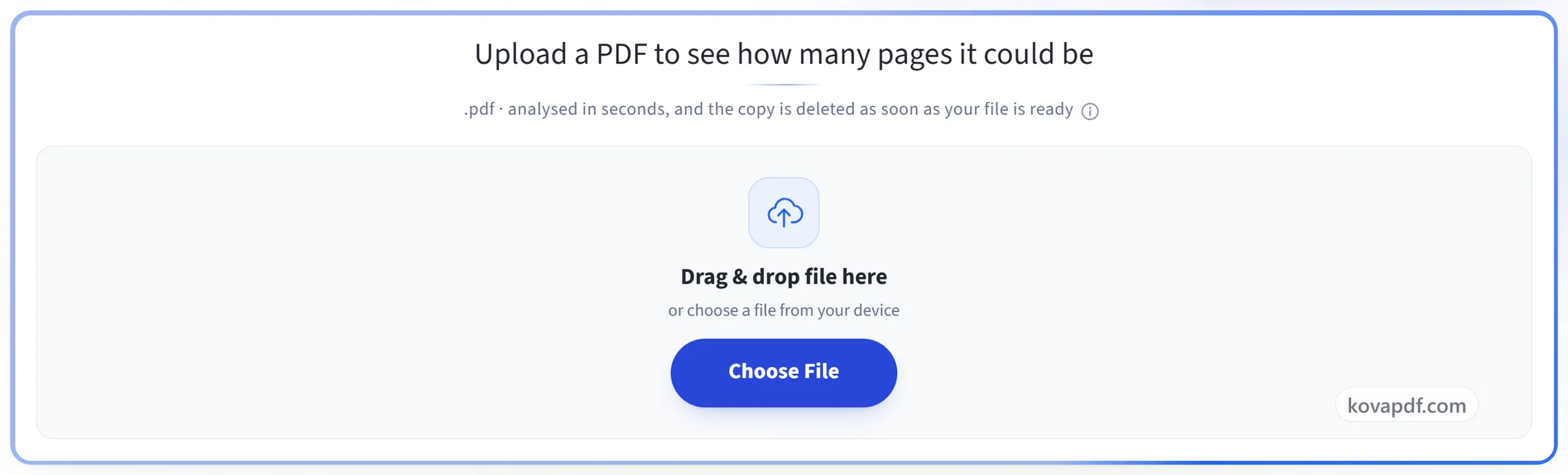
Upload your PDF
Drag a .pdf onto the panel, or click it to pick one. Every page is measured to find where the ink sits. A 200-page document takes about a second.
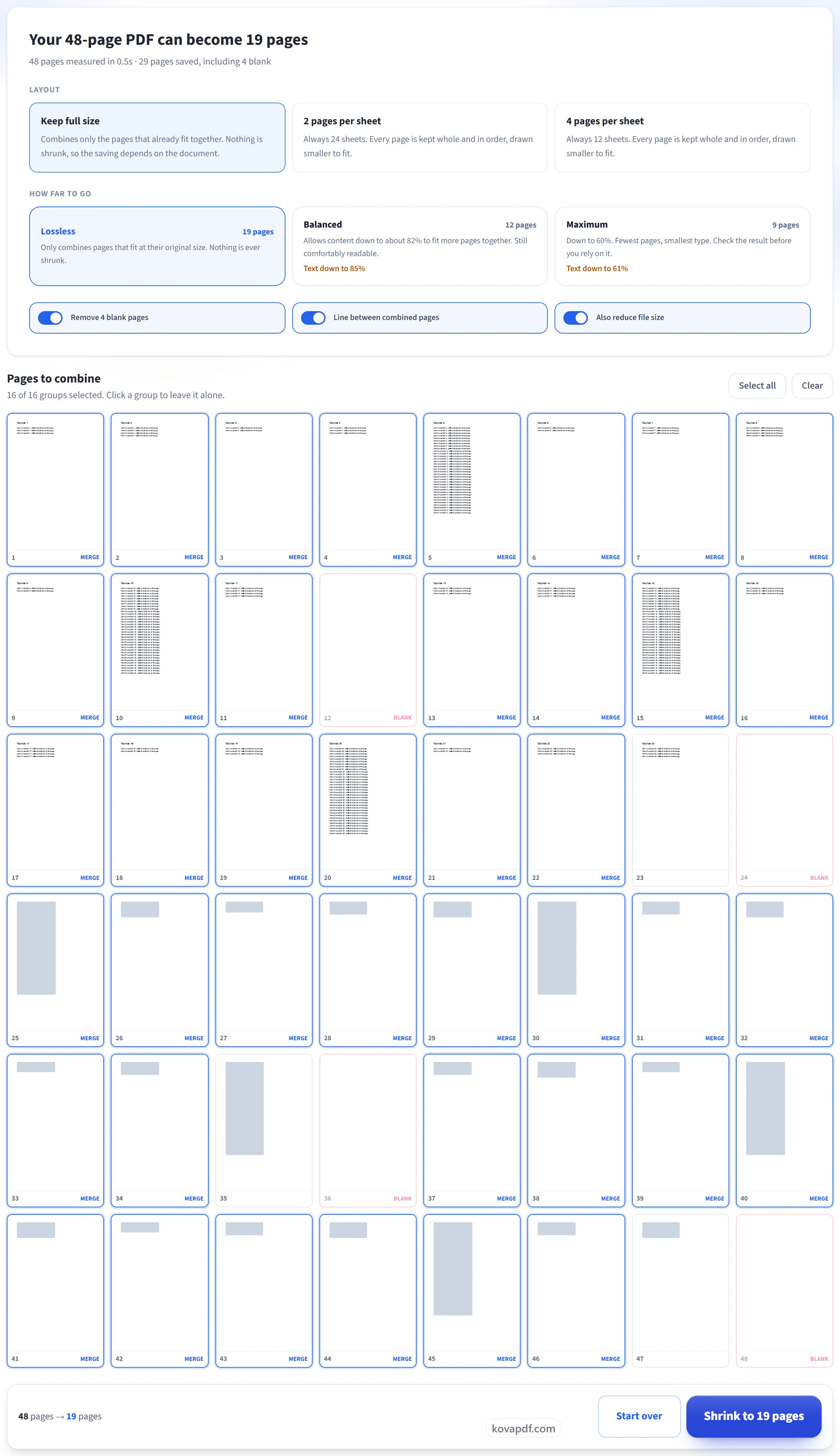
Choose how far to go
Each setting shows the real result for your document before you commit. Lossless never shrinks anything; the others say exactly what size the text would come down to. Click any group in the page grid to leave it alone.
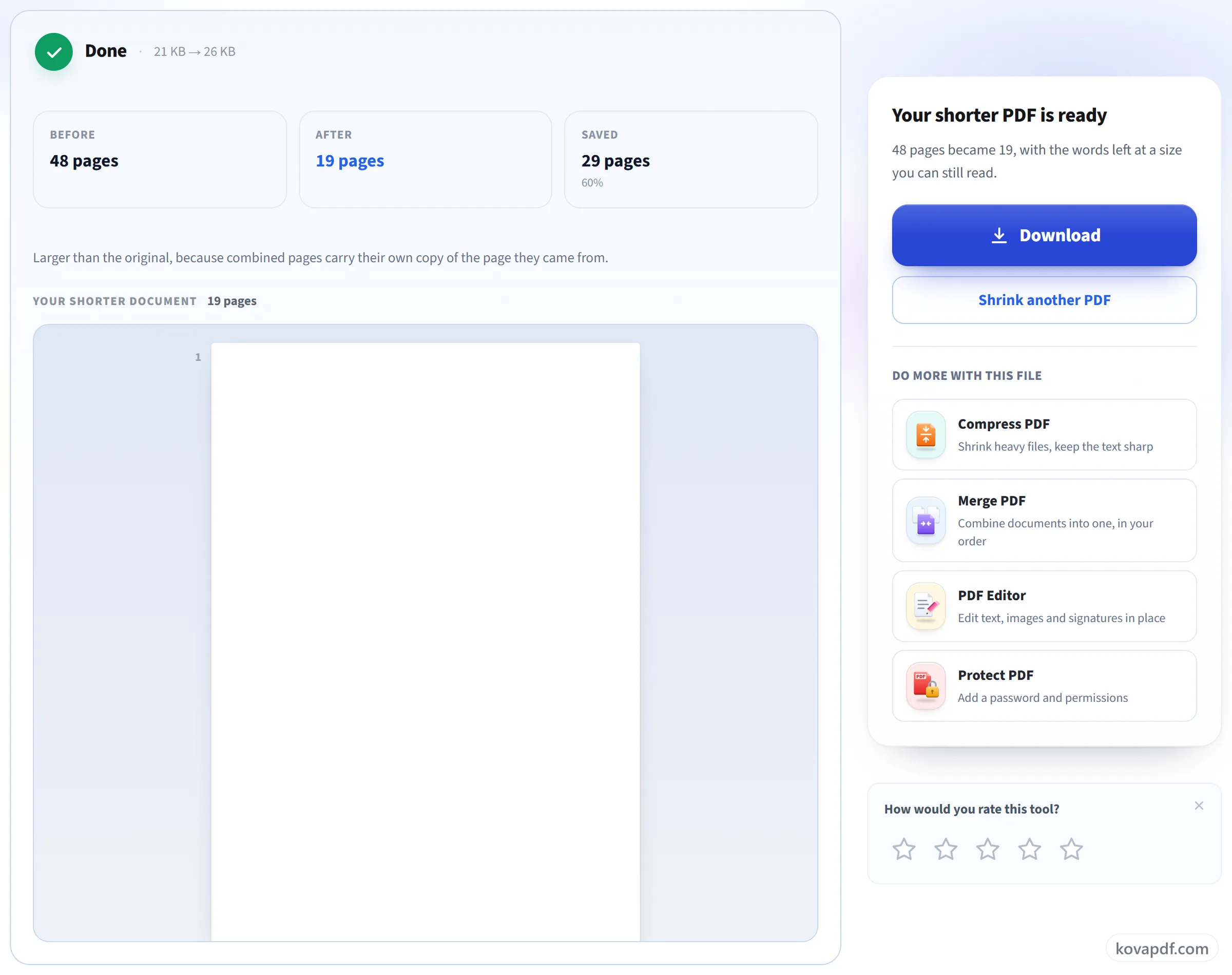
Download your shorter PDF
Before and after page counts, how many pages were saved, and the file size both ways.
Frequently asked questions about SmartShrink
How do I reduce the number of pages in a PDF?
Upload the PDF and SmartShrink measures how much of each page is used. "Keep full size" combines mostly-empty pages without shrinking their text, and 2 or 4 pages per sheet places whole pages side by side. You see the new page count before anything is made.
Does this shrink the text to fit more on a page?
Not on the default setting. 'Lossless' only combines pages whose content fits together at its original size. It finds where the content is on each page, crops to that, and stacks the pieces. The text keeps its size and stays selectable. The Balanced and Maximum settings do shrink content, and each one tells you the exact percentage before you commit.
How can 200 pages become 80 without losing anything?
Because most pages are mostly empty. A page with a heading and three lines uses about 4% of the sheet, so four of those fit on one page with room to spare. Nothing is removed. The same content uses less paper.
Can I put 2 or 4 pages on one sheet?
Yes. Choose 2 or 4 pages per sheet and every page is placed whole, scaled down to fit its space, in the original order, with nothing cropped. That halves or quarters the page count, which is handy for printing handouts or reading on a large screen.
Why does it say my PDF can't be shrunk?
Because its pages are already full. Slides, scans and image-heavy documents fill the sheet edge to edge, so combining any two would mean shrinking them. The tool tells you this instead of making a poor result.
What happens to links and form fields?
With "Keep full size", pages that have them are never combined and are copied across untouched. The 2 and 4 pages per sheet layouts place every page, so links, comments and form fields are lost there. Keep the original if you need them.
How is this different from Compress PDF?
Compress PDF makes the file smaller in megabytes and leaves every page as it is. SmartShrink reduces the number of pages, which is what matters when you print or read on screen, and then runs a compression pass as well, so the file usually gets smaller too.
Can I choose the pages myself?
Yes. The suggestions all start switched on, and you can switch off any group. The page grid shows which pages would go together, and the total updates as you change your mind.
Does the file get smaller too?
Usually. Combining pages makes the file bigger at first, so it is compressed at the end, and the result is normally smaller than the original. Both sizes are shown on the result screen, whichever way they went.
What happens to my file?
SmartShrink works in several steps, so it keeps your file while you use it. The file is deleted as soon as your new PDF is made. If you close the tab part-way through, it is deleted automatically within 30 minutes.
Is it free?
Yes. Every tool works without paying and without an account. Files can be up to 200 pages and 80 MB, and a run that fails costs you nothing.
Do I need to create an account?
No. All tools work without signing in. An account raises your hourly allowance and lets you see what you have processed.
SmartShrink guides and articles
Related tools
All PDF tools · 15 step-by-step guides · How your files are handled