PDF to Text
Pull the text straight out of your PDF. Embedded text is read directly, scanned pages are read with OCR. Copy a page at a time, copy everything, or download it all as a text file.
- Free to use
- Works on any device
- Nothing to install
- Embedded text read exactly
- Scanned pages recognised
- Every page in one file
- Copy it or download it
Drag & drop file here
or choose a file from your device
Upload a PDF to extract its text
PDF files only
We'll work out the language from the document itself.
Everything PDF to Text can do
Get the text of every page out of a PDF. Text the file already carries is read exactly, and scanned pages are recognised for you.
What it reads
- Embedded text lifted exactly as the file stores it
- Scanned pages recognised automatically, page by page
- A document that mixes real text and scans handled throughout
- Line breaks kept, so the page reads in order
Document language
- Work the language out from the document itself
- Bangla, English, Hindi, Arabic, Chinese, Russian, Spanish and Dutch
- Your script and English read together, for names, dates and amounts
- Name the language yourself and go straight to recognition
In the workspace
- Every page on screen with its own thumbnail
- Jump to any page and read its text against the page
- Copy one page from the button on that page
- Pages open up as each one is read
Taking the text away
- Copy All Pages in a single click
- Download the whole document as a .txt file
- Each block labelled with its page number
- Page text you can paste straight into a document
How it works
PDF to Text in three steps
Upload your PDF
Drag your file onto the upload panel, or click it to pick one from your device. Pages with no text layer are sent for recognition as soon as the file opens, and each working copy is deleted once it has been read.
Read the text page by page
Each page has its own Copy button. Copy the whole document at once, or download everything as a .txt file with the pages kept in order.
Copy or download
Recognised text is an estimate rather than a transcription, so check anything you intend to rely on, especially numbers.
PDF to Text: a visual walkthrough
Embedded text is read directly. Scanned pages are recognised instead, in any of eight languages, detected automatically.
Upload your PDF
Drag your file onto the upload panel, or click it to pick one from your device. Pages with no text layer are sent for recognition as soon as the file opens, and each working copy is deleted once it has been read.
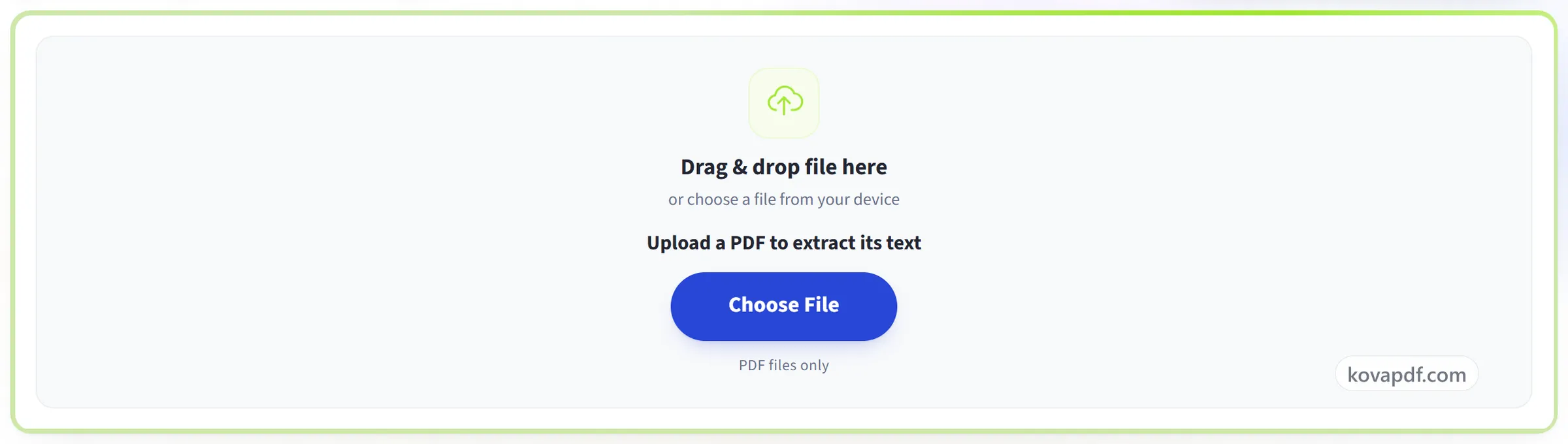
Read the text page by page
Each page has its own Copy button. Copy the whole document at once, or download everything as a .txt file with the pages kept in order.
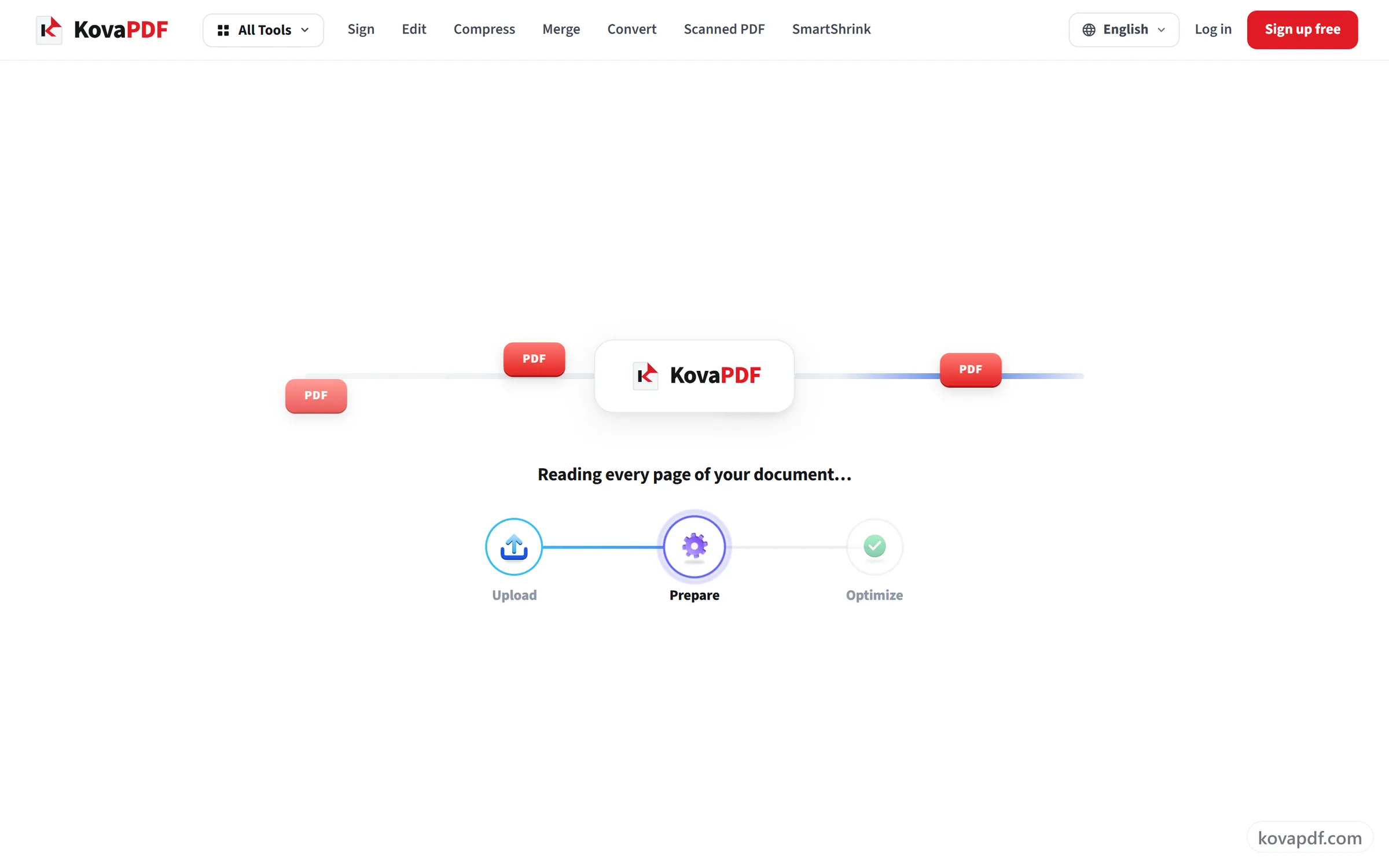
Copy or download
Recognised text is an estimate rather than a transcription, so check anything you intend to rely on, especially numbers.
Frequently asked questions about PDF to Text
How do I copy text from a PDF?
Open the PDF here and its text appears page by page. Copy a single page, copy the whole document at once, or download everything as a .txt file.
Does it work on scanned PDFs?
Yes. Pages with a real text layer are read exactly; pages without one are recognised with OCR. The two are handled automatically in the same document.
Can I copy just one page?
Yes. Every page has its own copy button, and you can also copy the whole document or download it as a .txt file with page numbering preserved.
Is the extracted text exact?
Yes, for pages that already contain text, because the text is read directly. For scanned pages, the text is recognised and may contain mistakes.
Will it keep tables and columns?
No. The text comes out as plain lines, page by page. Tables lose their grid, and on a page laid out in several columns, lines from neighbouring columns can run together. For tables, PDF to Excel keeps the cells.
What happens to my file?
Pages that already contain text are read in your browser, and the PDF itself is not uploaded. Only scanned pages are sent to our server, as images, so their text can be recognised. They stay on our server only for a short time while they are processed, then they are deleted. We keep a record that the tool was used, but not what is in the file.
Is it free?
Yes. Every tool works without paying and without an account. Files can be up to 200 pages and 80 MB, and a run that fails costs you nothing.
Do I need to create an account?
No. All tools work without signing in. An account raises your hourly allowance and lets you see what you have processed.
PDF to Text guides and articles
Related tools
All PDF tools · 15 step-by-step guides · How your files are handled