Add Page Numbers to PDF
Stamp page numbers in any of six positions on a PDF. Skip the cover, start at any number, and see where they land before you convert.
- Free to use
- Works on any device
- Deleted after processing
- Cover page left unnumbered
- A custom starting number
- 'Page 3 of 12' formats
- Any corner, or centred
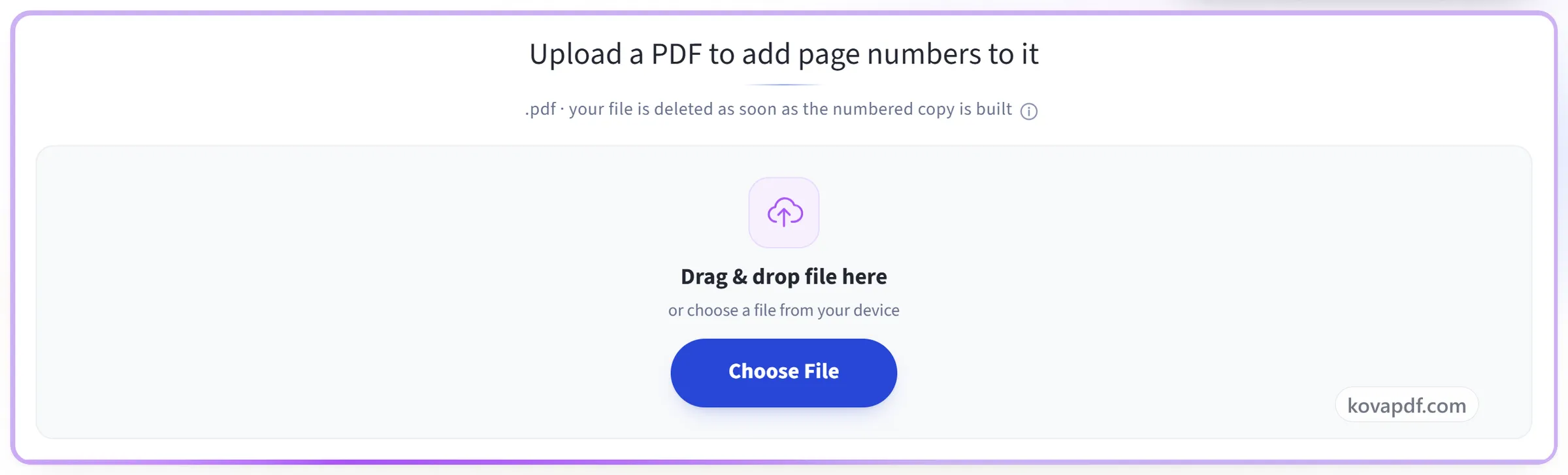
Upload a PDF to add page numbers to it
.pdf · your file is deleted as soon as the numbered copy is built
Drag & drop file here
or choose a file from your device
Everything Add Page Numbers can do
Stamp page numbers onto a PDF and see where they will land before you convert.
Where it sits
- Six positions: top or bottom, left, centre or right
- Three distances in from the edge
- Facing pages swap the number to the outer edge
- Lands correctly on pages that are rotated
What it says
- The bare number, Page 3, or Page 3 of 12
- A dashed style such as - 3 -
- Type your own wording using {n} and {p}
- Begin the count at any number you like
- Leave a cover page clean and start on page two
How it looks
- Sans serif, serif or monospace
- Text size anywhere from 6pt to 28pt
- Six ready colours, or one you pick yourself
- A white backing to keep it readable over artwork
Before you convert
- A live page that redraws as you change a setting
- Facing pages shown to you as a spread
- The result tells you how many pages were numbered
How it works
Page Numbers in three steps
Upload your PDF
Drag a .pdf onto the panel, or click it to pick one. Your file is deleted as soon as the numbered copy is built.
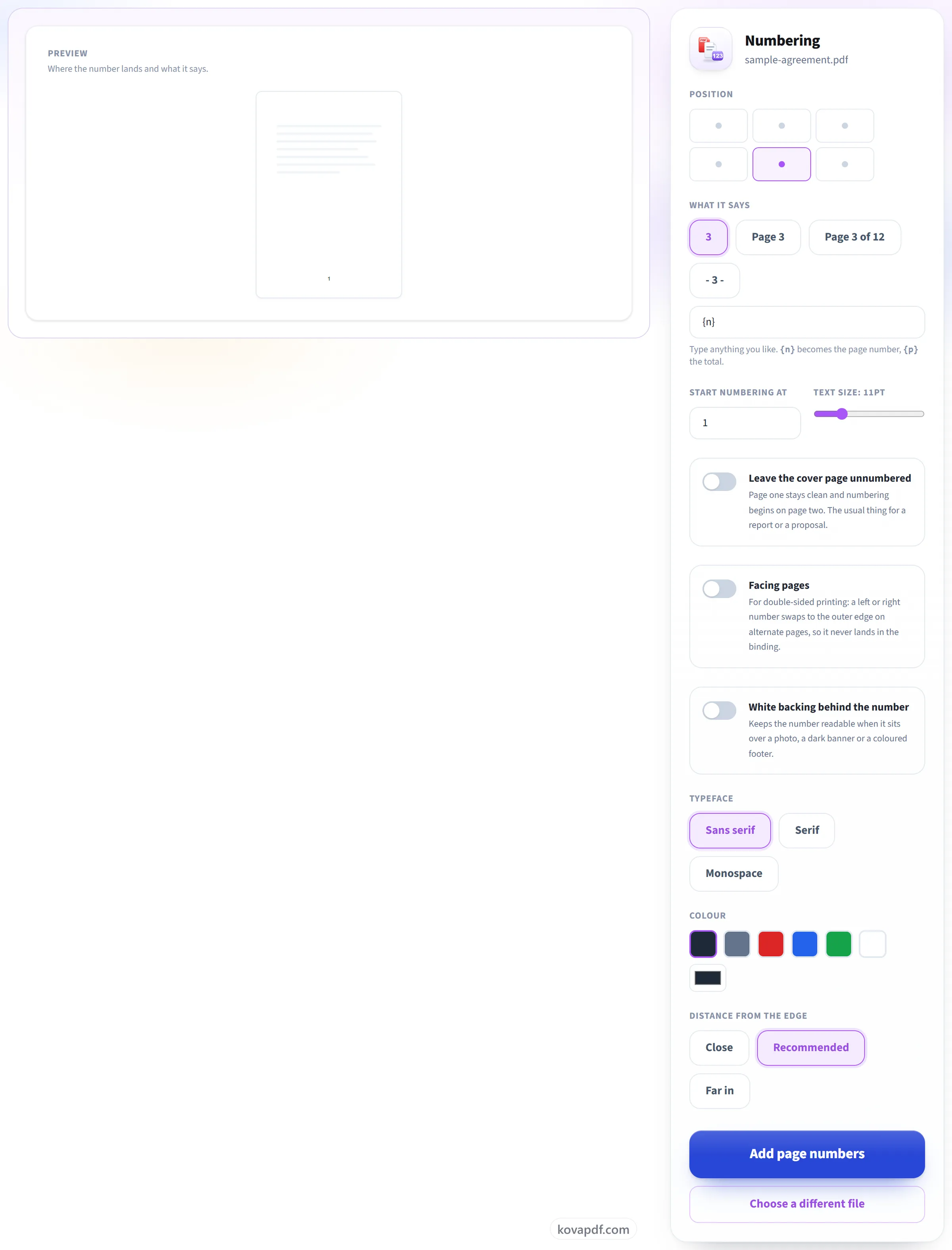
Place the numbers
Six positions, formats like 'Page 3 of 12', a starting number of your choice, and switches for skipping the cover and for double-sided printing. A sample page beside the settings shows where the number goes as you change them.
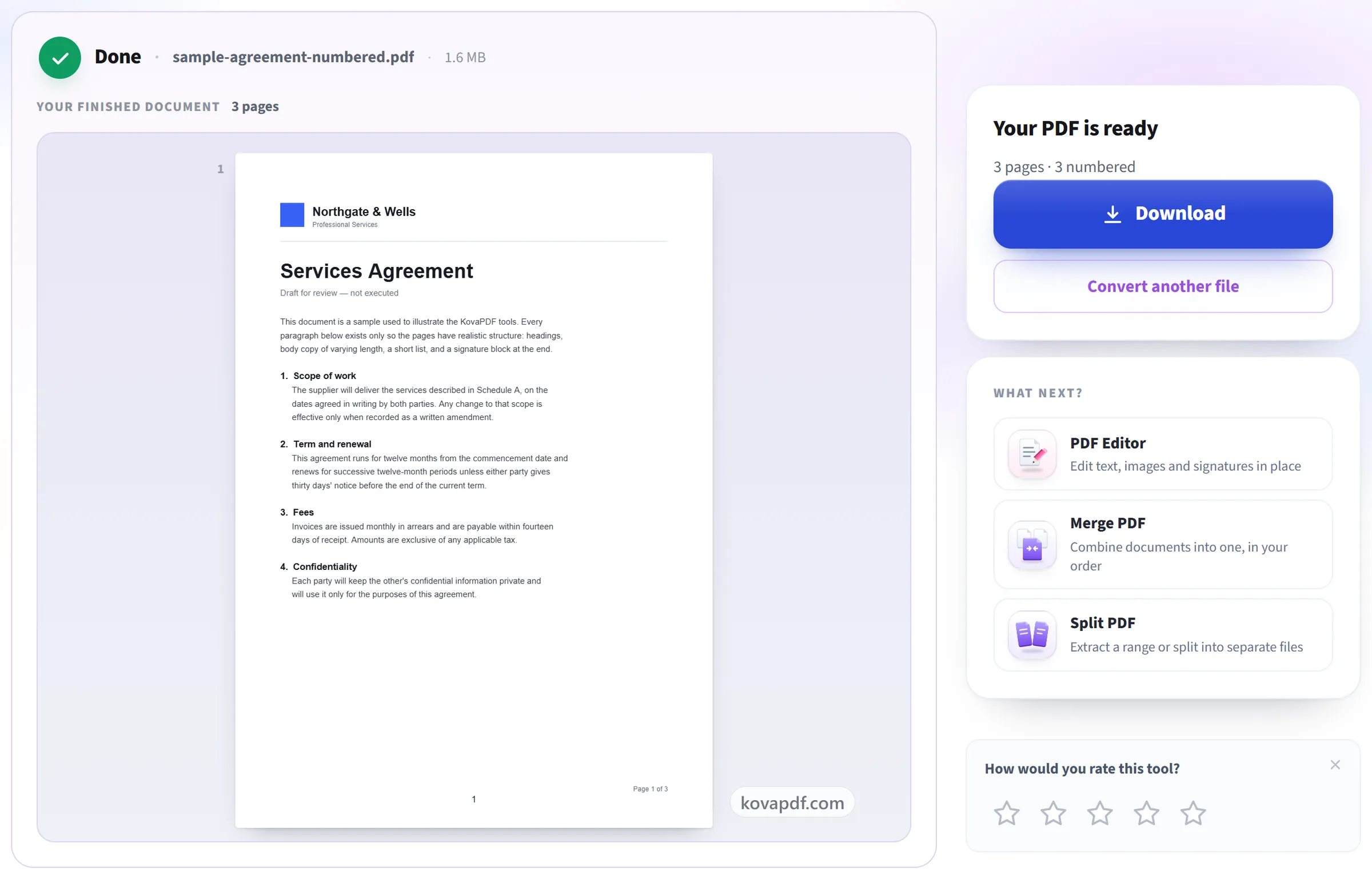
Download your PDF
The result says how many pages were numbered, and whether the cover was left clean.
Page Numbers: a visual walkthrough
See exactly where they will land before you convert.
Upload your PDF
Drag a .pdf onto the panel, or click it to pick one. Your file is deleted as soon as the numbered copy is built.
Place the numbers
Six positions, formats like 'Page 3 of 12', a starting number of your choice, and switches for skipping the cover and for double-sided printing. A sample page beside the settings shows where the number goes as you change them.
Download your PDF
The result says how many pages were numbered, and whether the cover was left clean.
Frequently asked questions about Page Numbers
How do I add page numbers to a PDF?
Choose your PDF, pick where the number goes and how it is written, and download the numbered file. There are six positions, at the top or bottom on the left, centre or right, and four ready-made formats such as "Page 3 of 12", or you can write your own.
Can I leave the cover page unnumbered?
Yes, with one switch. The first page gets no number and numbering starts on page two, which is usual for a report or a proposal.
Can I start at a number other than 1?
Yes, any number. Useful when the document continues from another volume, or when the front matter was numbered separately.
Can it say 'Page 3 of 12'?
Yes. Pick that format or write your own, where {n} becomes the page's number and {p} the total.
Can I add my own text around the number?
Yes. Write your own format of up to 60 characters, with {n} where the number goes and {p} for the total, for example "Annual report, page {n}". Bangla, Arabic, Chinese and other scripts are drawn with a font that can show them.
Can I number only some of the pages?
Here you can leave the first page unnumbered. To number a particular range, such as pages 3 to 20, use Add Header & Footer, which takes a page list like 3-20 and can put the number in any of six places.
What is 'facing pages' for?
Double-sided printing. A number placed left or right swaps to the outer edge on alternate pages, so it never ends up in the binding. Centre positions are unaffected.
Will the number be readable over a dark footer or a photo?
Switch on the white backing and it sits on a small opaque pill. You can also change the colour, including to white.
Can I see where it will land before converting?
Yes. A sample page shows the number in place and updates as you change the position, format, size and colour, so you can settle the look before your file is processed.
Is it free?
Yes. Every tool works without paying and without an account. Files can be up to 200 pages and 80 MB, and a run that fails costs you nothing.
Do I need to create an account?
No. All tools work without signing in. An account raises your hourly allowance and lets you see what you have processed.
What happens to my file?
Your file stays on our server only for a short time while it is processed, then it is deleted. It is sent over an encrypted connection. We keep a record that the tool was used, but not the file name or what is in the file.
Page Numbers guides and articles
Related tools
All PDF tools · 15 step-by-step guides · How your files are handled