CSV to PDF
Turn a CSV into a clean printed table: columns measured to their contents, the delimiter worked out for you, and the header repeated on every page.
- Keeps your layout
- Works on any device
- Deleted after processing
- Columns measured to their text
- The header repeats on every page
- Comma, semicolon or tab
- A clean printed table
.csv · .tsv
Upload a CSV to turn it into a PDF table
.csv, .tsv · your file is deleted as soon as the PDF is built
Drag & drop file here
or choose a file from your device
Everything CSV to PDF can do
Turn a CSV or TSV into a real printed table, free and online, with no account.
Reading your file
- The delimiter worked out for you, or set it yourself
- Comma, semicolon, tab and pipe
- Quoted fields holding commas or line breaks read correctly
- UTF-8, UTF-16 and BOM-marked files decoded properly
- Bangla and English set side by side, in real Bengali type
Columns that fit
- Every column measured against its real contents
- The widest columns shrink first, so dates and ids stay whole
- A field holding two lines keeps both lines
- The table spreads out to fill the page width
How the table looks
- First row styled as a header and repeated on every page
- Striped rows, on or off
- Grid lines between cells, on or off
- Text size from 5 to 16 point, on a slider
The page
- A4, Letter, Legal or A3
- Landscape by default, portrait one tap away
- Narrow, Normal or Wide margins
- Tells you afterwards which delimiter it read, with row and column counts
How it works
CSV to PDF in three steps
Upload your CSV
Drag a .csv or .tsv onto the panel, or click it to pick one. Your file is deleted as soon as the PDF is built.
Check the table setup
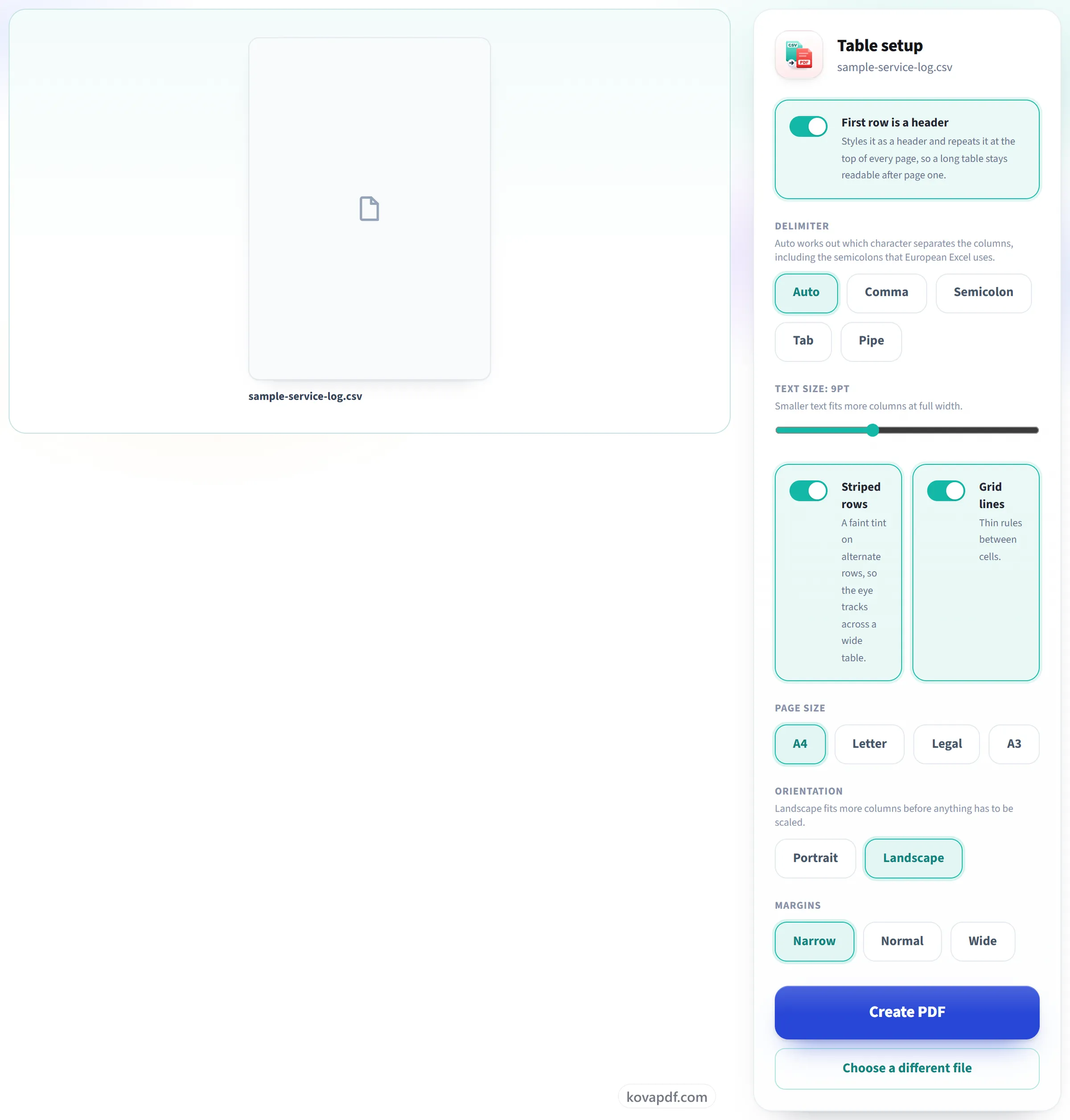
The delimiter is worked out for you (comma, semicolon, tab or pipe) and every column is measured against its real contents so nothing is clipped. Striping, grid lines and the repeating header are all switchable here.
Download your PDF
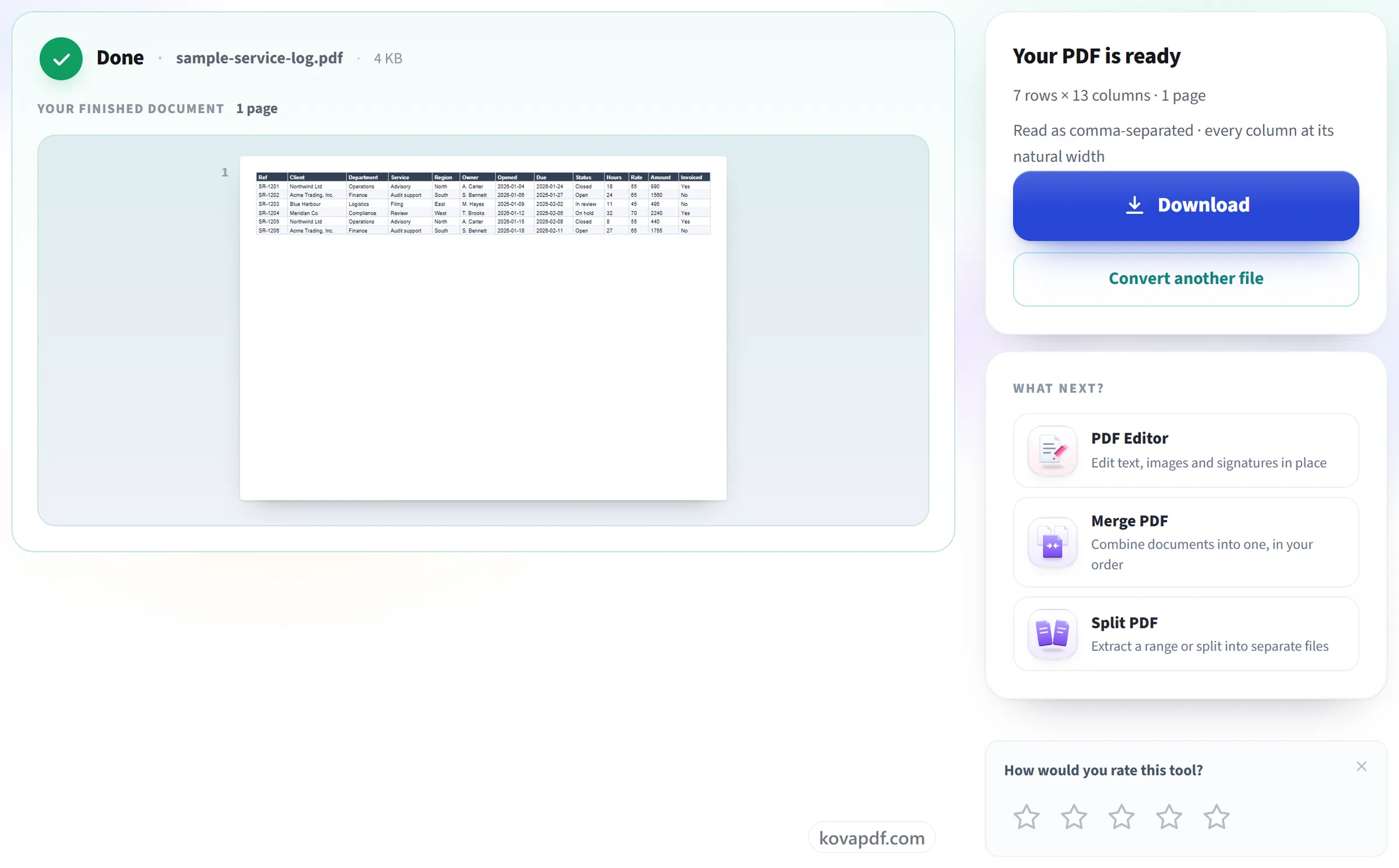
The result tells you how many rows and columns were read, which delimiter was used, and whether anything had to be scaled to fit.
CSV to PDF: a visual walkthrough
Columns measured to their contents, and the header repeated on every page.
Upload your CSV
Drag a .csv or .tsv onto the panel, or click it to pick one. Your file is deleted as soon as the PDF is built.

Check the table setup
The delimiter is worked out for you (comma, semicolon, tab or pipe) and every column is measured against its real contents so nothing is clipped. Striping, grid lines and the repeating header are all switchable here.
Download your PDF
The result tells you how many rows and columns were read, which delimiter was used, and whether anything had to be scaled to fit.
Frequently asked questions about CSV to PDF
How do I convert a CSV file to PDF?
Choose your .csv or .tsv file and press Create PDF. The delimiter is detected for you, and the data is laid out as a table with a header row, gridlines and shaded alternate rows, in landscape on A4 by default. Each of those can be changed before you convert.
My CSV uses semicolons, not commas. Will that work?
Yes. The delimiter is found automatically, whether it is a comma, semicolon, tab or pipe. The result screen tells you which one was used, and you can change it if the guess was wrong.
Will long values be cut off?
No. Each column gets the width its contents need. If the table is still wider than the page, the widest columns are made narrower first and their text wraps onto more lines. Short values like dates and IDs stay whole, and nothing is cut off.
Does the header repeat if the table runs onto more pages?
Yes, on every page, so a long table is still easy to read after page one.
Can I change the page size, orientation or font size?
Yes. Paper can be A4, Letter, Legal or A3, in landscape or portrait, with narrow, normal or wide margins, and the text size can be set from 5 to 16 points. The header row styling, the row shading and the gridlines can each be switched off.
Why do accented letters come out wrong?
Your file is probably not saved as UTF-8. The converter reads UTF-8 and UTF-16, but CSV files from older versions of Excel are often saved in a Windows encoding, and their accented letters turn into the wrong characters. Save the file again as "CSV UTF-8" and convert that copy.
What about commas and line breaks inside a quoted field?
They work. A quoted field can contain the delimiter, quote marks and line breaks. An address written on two lines stays on two lines inside its cell.
Is there a limit on the number of rows?
There is no row limit as such, but the finished PDF can have up to 200 pages. For a very long file, a smaller text size or A3 paper fits more rows on each page.
Which files can I upload?
.csv and .tsv.
Is it free?
Yes. Every tool works without paying and without an account. Files can be up to 200 pages and 80 MB, and a run that fails costs you nothing.
Do I need to create an account?
No. All tools work without signing in. An account raises your hourly allowance and lets you see what you have processed.
What happens to my file?
Your file stays on our server only for a short time while it is processed, then it is deleted. It is sent over an encrypted connection. We keep a record that the tool was used, but not the file name or what is in the file.
CSV to PDF guides and articles
Related tools
All PDF tools · 15 step-by-step guides · How your files are handled