Crop PDF Pages
Drag a frame to cut off margins and edges. Crop every page the same way or each page on its own, or let the tool find the white margins for you. What you see inside the frame is what your new PDF shows.
- Free to use
- Works on any device
- Deleted after processing
- Drag a frame or type the margins
- Trim white margins automatically
- Rotated and mixed-size pages
- Checked against your frame
Drag & drop file here
or choose a file from your device
Upload the PDF you want to crop
PDF · up to 80 MB · nothing is uploaded until you crop
Everything Crop PDF can do
Cut off the margins and edges of PDF pages with a frame you draw, or let the tool find the white margins for you.
The crop frame
- Drag the corners or edges, move the whole frame, or draw a new one on the page
- Type the margins in millimetres or inches instead
- Zoom in for precision, with Ctrl and the mouse wheel or two fingers on a phone
- Undo and redo every change before anything is cropped
Pages
- One crop for all pages, odd pages, even pages or a list such as 1-3, 8
- Or page by page, each page with its own frame
- Pages of different sizes get the same proportions or the same margins, your choice
- Rotated pages and pages that were already cropped are cropped where you drew
Trim white margins
- Finds the content on each page and puts the frame around it
- Keeps a border of 3, 6 or 12 mm, or none
- Leaves pages with photo or coloured edges for you to crop, and does not trim into content it can see
The cropped file
- Every cropped page is checked against your frame before you can download it
- Text stays selectable, images keep their quality, links and form fields still work
- The area outside the frame is hidden but stays in the file. To remove content for good, use Redact PDF
- PDFs up to 80 MB and 200 pages
How it works
Crop PDF in three steps
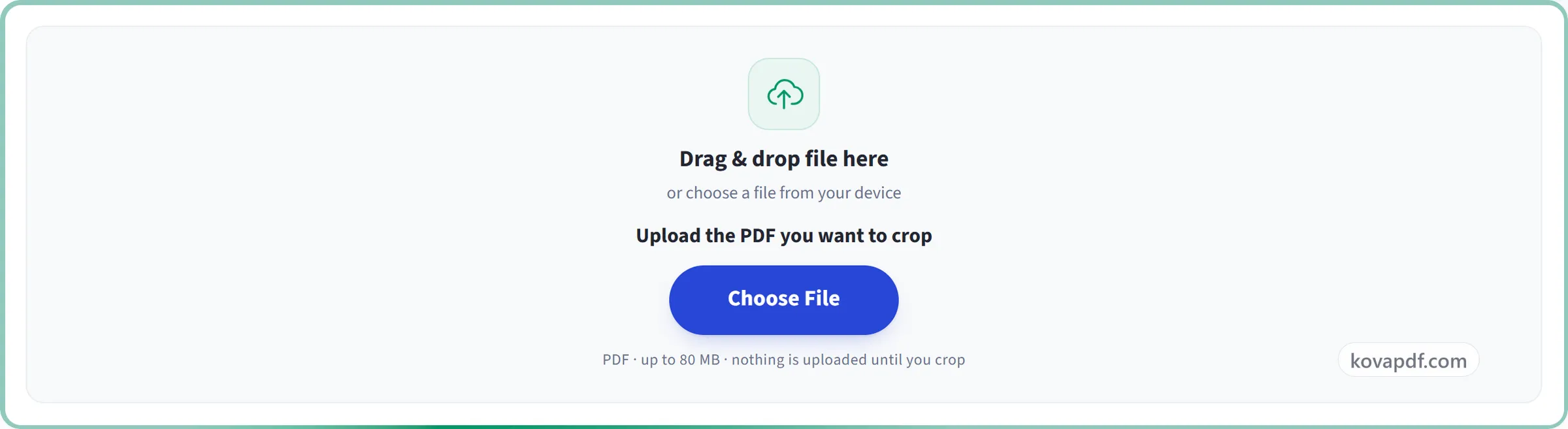
Upload your PDF
Drag the .pdf onto the panel, or click it to pick one. Your file stays on your device until you press Crop PDF.
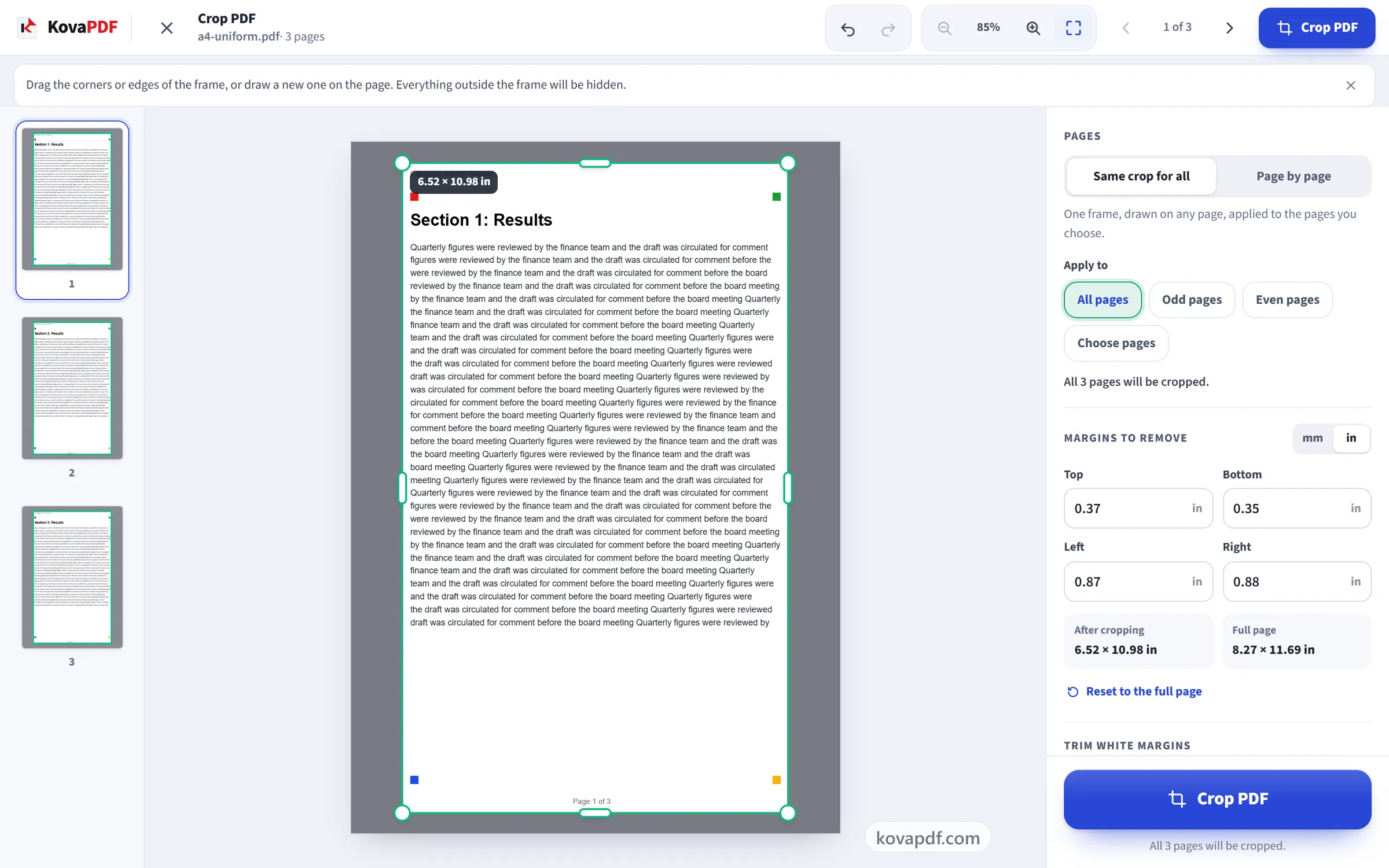
Set the frame
Drag the corners or edges of the frame, or type the margins. Trim margins finds the white margins for you. Choose Same crop for all or Page by page. The thumbnails show what each page will get.
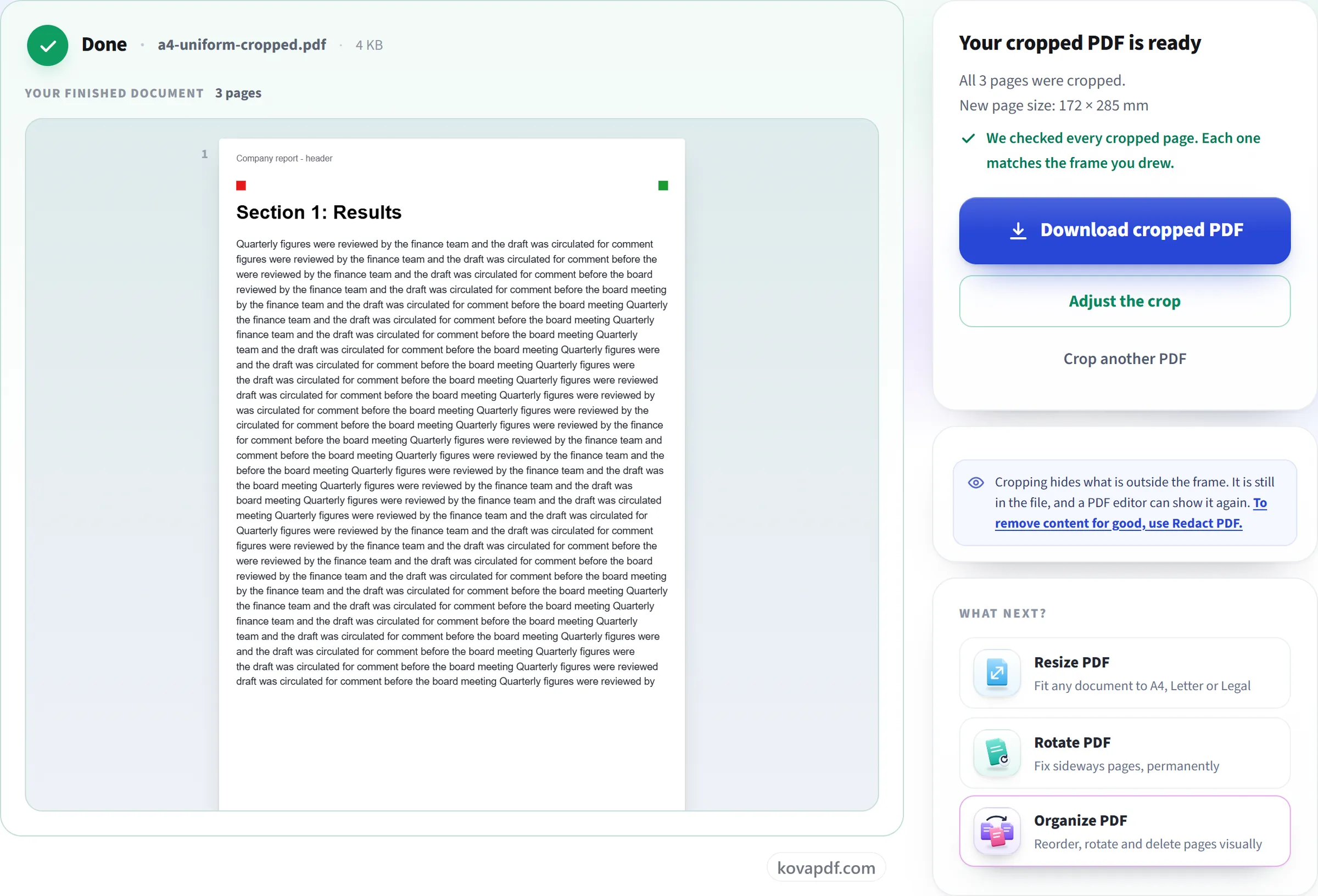
Crop and download
Press Crop PDF. We check the new file against your frame. Then download it, or go back and change the crop.
Crop PDF: a visual walkthrough
Crop a PDF in three steps.
Upload your PDF
Drag the .pdf onto the panel, or click it to pick one. Your file stays on your device until you press Crop PDF.
Set the frame
Drag the corners or edges of the frame, or type the margins. Trim margins finds the white margins for you. Choose Same crop for all or Page by page. The thumbnails show what each page will get.
Crop and download
Press Crop PDF. We check the new file against your frame. Then download it, or go back and change the crop.
Frequently asked questions about Crop PDF
How do I crop a PDF?
Open your PDF and a frame appears on the page. Drag its corners or edges to the part you want to keep, or type the margins in millimetres or inches. Choose which pages it applies to, press Crop PDF, and download the new file.
Can I crop only some pages, or each page differently?
Yes. With Same crop for all, one frame is used on all pages, on odd or even pages, or on a list such as 1-3, 8. With Page by page, each page gets its own frame, and pages you do not change stay as they are. Use this crop on all pages copies the current frame to every page. The page thumbnails show the crop each page will get.
How does Trim white margins work? Can it cut off my content?
It looks at each page on your device and finds everything that is not plain background, then puts the frame around it with the border you choose. It is careful: faint text and page numbers count as content, and a page with a photo, a gradient or mixed colours at its edges is left for you to crop. With Same crop for all, the frame fits the content of every page. You see the result before anything is cropped, and you can change it.
What happens when my pages are different sizes?
You choose. Same proportions crops the same share of every page, so the same part of each page is kept. Same margins trims the same distance from each edge, which suits scans with an even border. If the margins are too big for a smaller page, they are made smaller to fit, and you are told which pages.
Does cropping delete what is outside the frame?
No. Cropping changes the part of the page that PDF viewers and printers show. The content outside it stays in the file, and a PDF editor can show it again. To remove text or images for good, use Redact PDF.
Do rotated pages crop correctly?
Yes. You draw the frame on the page the way you see it, so a page turned 90 or 180 degrees is cropped where you drew. A page that was already cropped is cropped from what you see now, and its rotation stays the same.
Will my text, links and images still work?
Yes. Nothing on the page is redrawn. Text can still be selected and searched, images keep their quality, and links and form fields still work. Only the part of the page that is shown changes.
What happens to my file?
While you set the crop, your file stays on your device. When you press Crop PDF, it is sent to our server. Your file stays on our server only for a short time while it is processed, then it is deleted. Files can be up to 80 MB and 200 pages.
Is it free?
Yes. Every tool works without paying and without an account. Files can be up to 200 pages and 80 MB, and a run that fails costs you nothing.
Do I need to create an account?
No. All tools work without signing in. An account raises your hourly allowance and lets you see what you have processed.
Related tools
All PDF tools · 15 step-by-step guides · How your files are handled