PDF to Word Converter
Convert your PDF into a real, editable Word document. The layout is kept and the text sits in positioned boxes, ready to rewrite.
- Keeps your layout
- Works on any device
- Deleted after processing
- A genuinely editable .docx
- Text in positioned, editable boxes
- Tables and images carried over
- Opens in Word or LibreOffice
Drag & drop file here
or choose a file from your device
Upload a PDF to convert it into an editable Word document
PDF files only
Everything PDF to Word can do
Turn a PDF into a real .docx you can rewrite in Word, free and online, with no account.
Text you can edit
- Real, selectable Word text, not a picture of a page
- Typeface, size, weight, italics and colour carried across
- Each line keeps the break and spacing the PDF gave it
- Every page becomes its own Word section
- Page size, orientation and margins taken from each page
Tables and rules
- Rules the page actually drew become real Word tables
- The source's own column widths, row heights and merges
- Border thickness reproduced edge by edge
- Loose rules become paragraph borders at their exact position
- Underlines land on the text they sit beneath
Logos and artwork
- Logos, seals, barcodes and signatures floated at their own coordinates
- Shaded banners and coloured blocks come across with the page
- A scanned page is placed whole, so it prints like the original
Your route through it
- Switch the target to Excel or PowerPoint without uploading again
- Download the same document in another Office format afterwards
- Open the PDF in the PDF Editor first and still finish in Word
- Send a scan to OCR PDF and finish in Word
How it works
PDF to Word in three steps
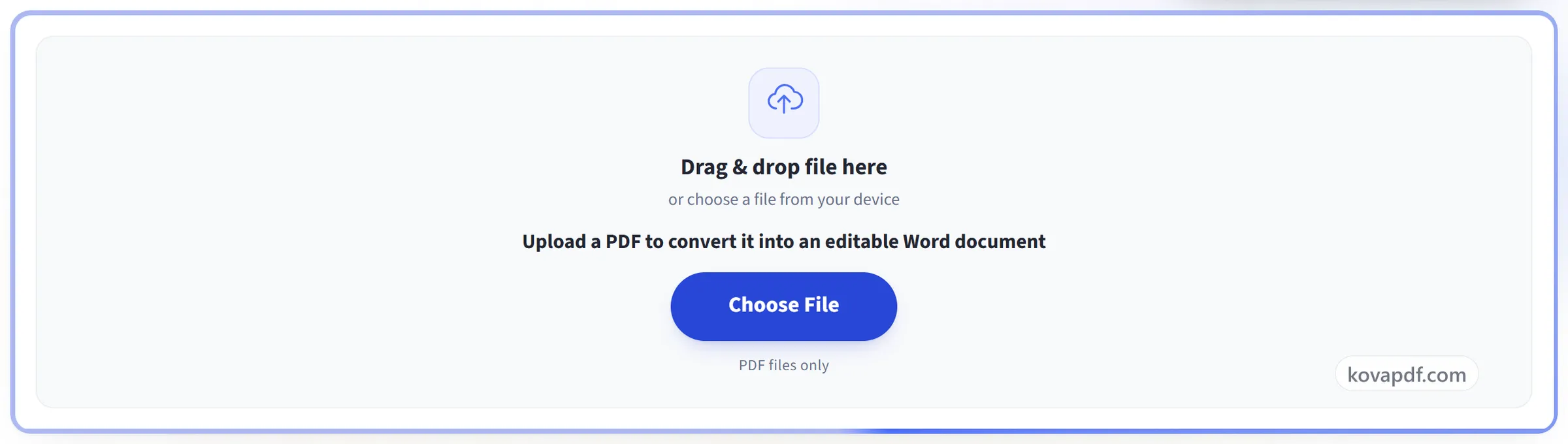
Upload your PDF
Drag your file onto the upload panel, or click it to pick one from your device. Conversion starts as soon as the file is read, and the working copy is deleted the moment it finishes.
It reads your document's text
Text is pulled out in reading order, with bold and italic kept where the PDF used them.
Download your Word document
The result opens in Word (or any compatible app) with the layout kept and the text in positioned boxes, ready to rewrite.
PDF to Word: a visual walkthrough
Get a real, editable Word document out of your PDF.
Upload your PDF
Drag your file onto the upload panel, or click it to pick one from your device. Conversion starts as soon as the file is read, and the working copy is deleted the moment it finishes.
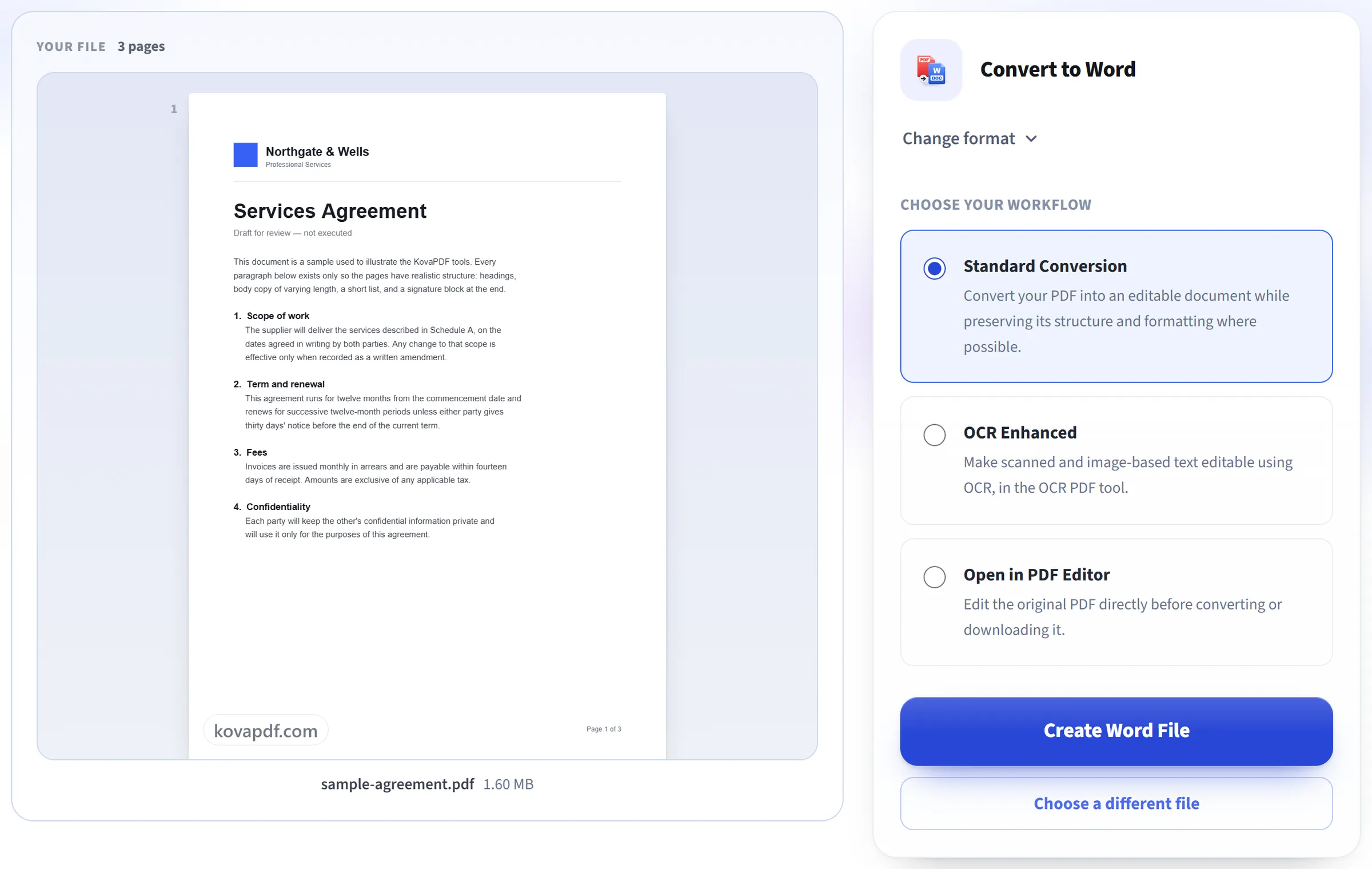
It reads your document's text
Text is pulled out in reading order, with bold and italic kept where the PDF used them.
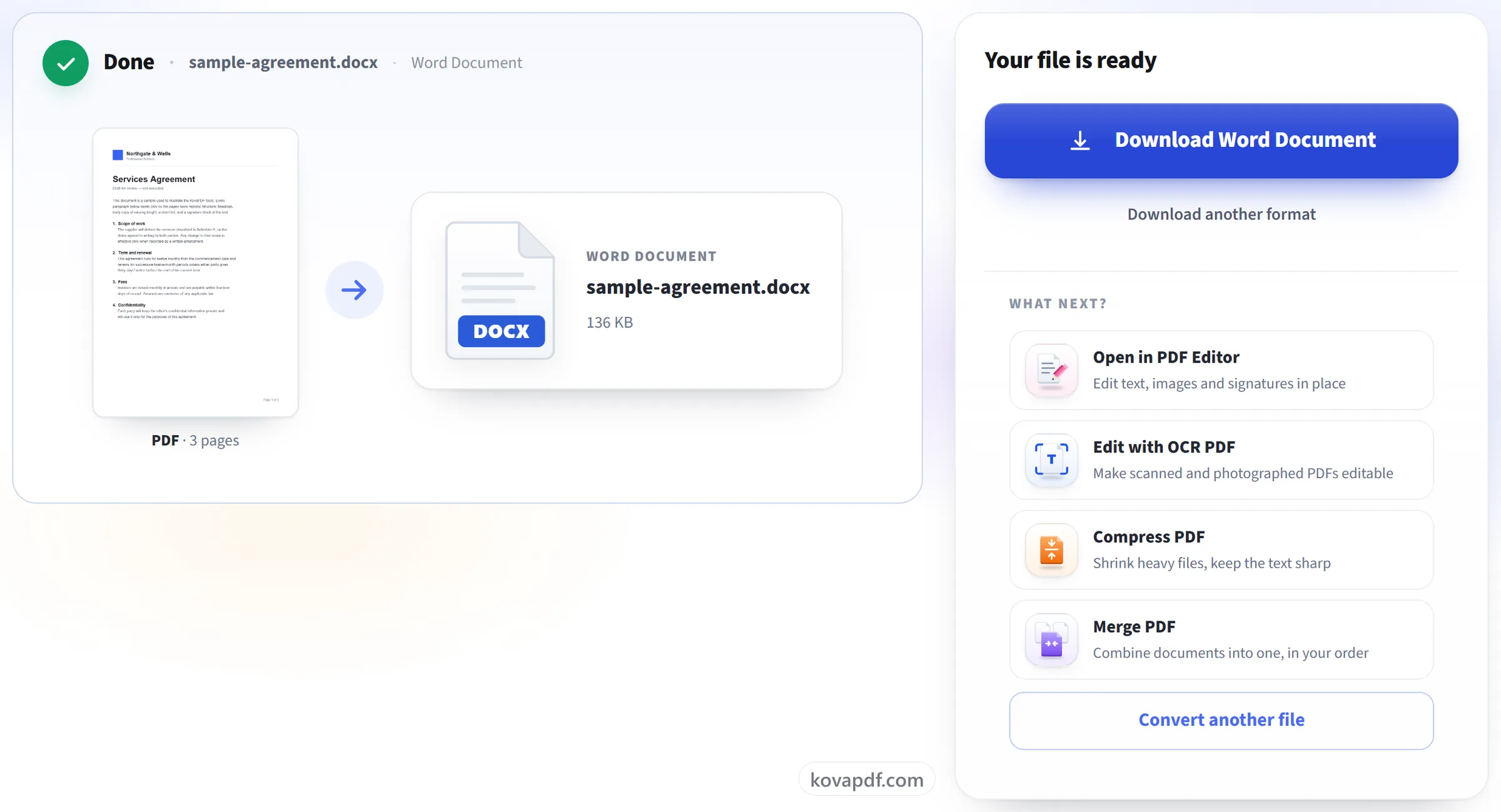
Download your Word document
The result opens in Word (or any compatible app) with the layout kept and the text in positioned boxes, ready to rewrite.
Frequently asked questions about PDF to Word
How do I convert a PDF to Word?
Upload the PDF and download the .docx that comes back. Each page keeps its size and orientation, with its text, tables and images placed where they were on the page. The file opens in Microsoft Word and other apps that read .docx files.
Can I edit the text afterwards?
Yes. It is real Word text you can retype and restyle, with bold, italic, sizes and colours kept. Each block of text sits in a frame at the position it had on the page instead of flowing like a typed document, so the layout matches the PDF, but a block that grows does not push the text below it down.
What doesn't come across?
Most of the page does: text with its fonts, sizes and colours, tables drawn with lines, and logos, images and other artwork, each in its place. What is lost is links, text set at an angle, and a picture or background that covers more than half the page. Word may substitute its own copy of a font, so a line can be slightly condensed to stay on one line.
Does it work on scanned PDFs?
It converts them, but a scanned page comes into Word as a picture of the page, so it looks exactly like the original but its words cannot be edited. The result screen tells you when this has happened. To work with the words, use OCR PDF to edit the page directly, or PDF to Text to copy the recognised text out.
Can I convert PDF to Word on my phone?
Yes. Pick the PDF from your phone's files in the browser and download the .docx. The conversion runs on our server; to edit the result on the phone you need an app that opens Word files.
Can I convert a password-protected PDF?
Not while the password is on, because a locked file cannot be opened for conversion. If you know the password, remove it with Unlock PDF first, then convert the unlocked copy.
Can I convert a large PDF?
Up to 200 pages and 80 MB. A conversion also has to finish within about a minute, so a very long or unusually complex document can time out. If that happens, split it with Split PDF and convert the parts.
Is it free?
Yes. Every tool works without paying and without an account. Files can be up to 200 pages and 80 MB, and a run that fails costs you nothing.
Do I need to create an account?
No. All tools work without signing in. An account raises your hourly allowance and lets you see what you have processed.
What happens to my file?
Your file stays on our server only for a short time while it is processed, then it is deleted. It is sent over an encrypted connection. We keep a record that the tool was used, but not the file name or what is in the file.
PDF to Word guides and articles
Related tools
All PDF tools · 15 step-by-step guides · How your files are handled