Word to PDF Converter
Turn a Word document into a PDF that keeps its fonts, images and tables, and choose the page it prints on before you convert.
- Keeps your layout
- Works on any device
- Deleted after processing
- Fonts and images kept
- Wide .docx tables fit the page
- A4, Letter, Legal or A3
- Page setup for .docx and .odt
.docx · .doc · .rtf · .odt · .txt
Upload a Word document to turn it into a PDF
.docx, .doc, .rtf, .odt, .txt · your file is deleted as soon as the PDF is built
Drag & drop file here
or choose a file from your device
Everything Word to PDF can do
Turn a Word document into a PDF and choose the page it prints on first.
Files it reads
- .docx, .doc, .rtf, .odt and .txt
- Embedded fonts, so type sets the way you saved it
- Charts, floating shapes and images rendered by a full office engine
- Right-to-left runs and inherited numbering resolved as written
The page you choose
- Page size: the document's own, A4, Letter, Legal or A3
- Portrait, landscape, or whatever the document already set
- Wide, Normal, Narrow or no margins at all
- A paper preview that changes shape as you choose
- Offered for .docx and .odt: a .doc, .rtf or .txt keeps the setup it was saved with
Wide tables fit
- Fit everything on one page wide, already on
- A table wider than the text column is scaled down to fit
- Every column stays visible, with its proportions intact
The finished file
- The page setup is written into the document before it renders
- The finished PDF shown page by page before you download
- Page count reported beside the download button
How it works
Word to PDF in three steps
Upload your document
Drag a .docx (or .doc, .rtf, .odt, .txt) onto the panel, or click it to pick one. Your file is deleted as soon as the PDF is built.
Set the page
For .docx and .odt: page size, orientation and margins, with a live preview of the sheet you will get. For .docx, leave 'Fit everything on one page wide' on and a table too wide for the page is scaled to fit instead of being cut off.
Download your PDF
The result keeps your fonts, images, tables and page breaks exactly as Word laid them out.
Word to PDF: a visual walkthrough
Choose the page your document prints on before you convert it, not after.
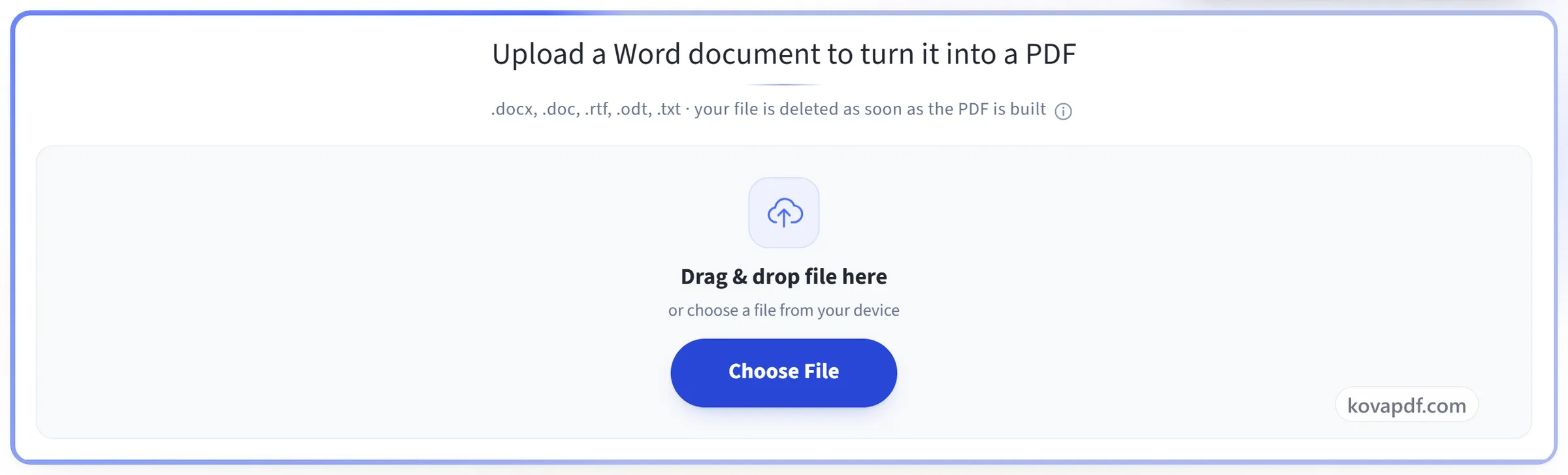
Upload your document
Drag a .docx (or .doc, .rtf, .odt, .txt) onto the panel, or click it to pick one. Your file is deleted as soon as the PDF is built.
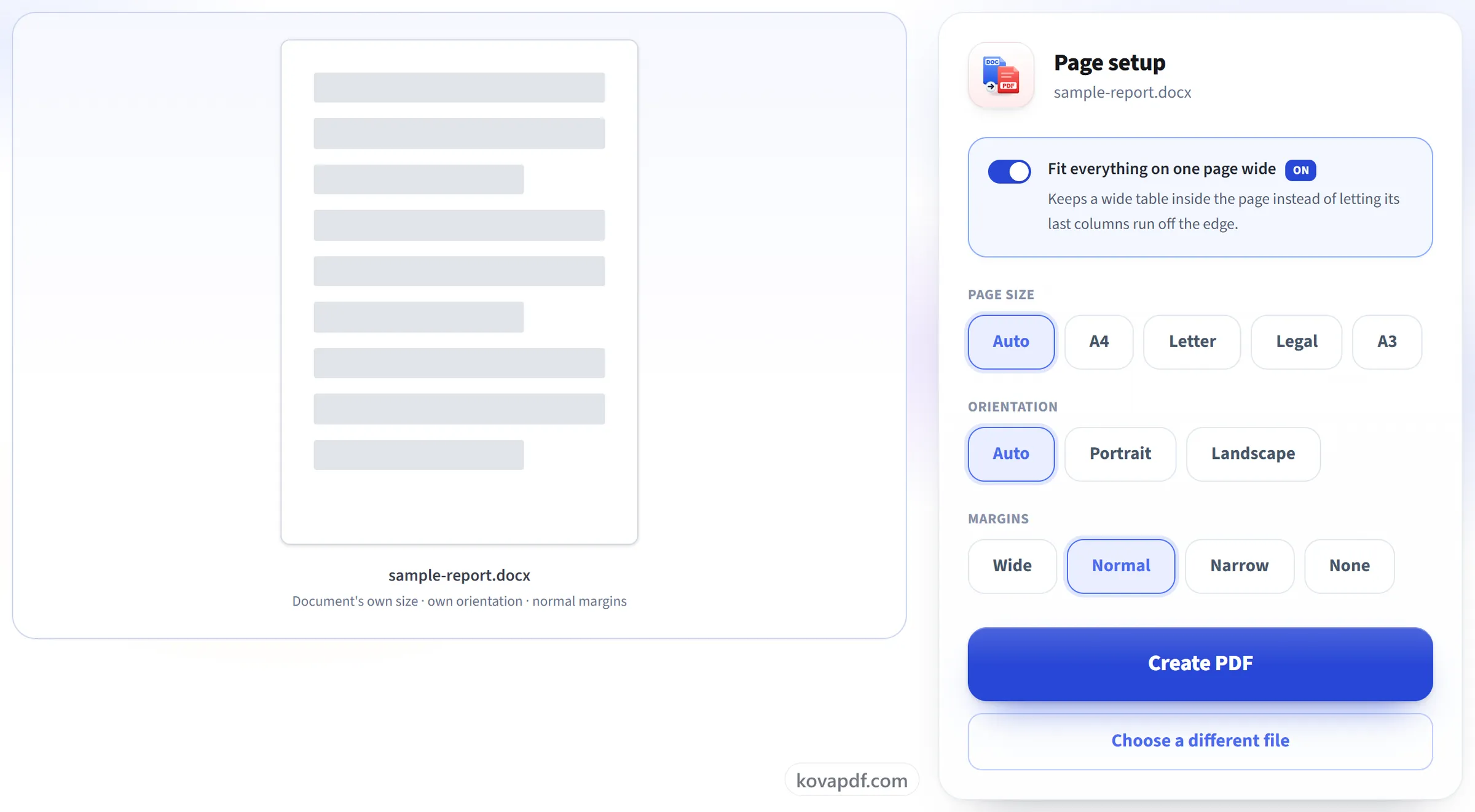
Set the page
For .docx and .odt: page size, orientation and margins, with a live preview of the sheet you will get. For .docx, leave 'Fit everything on one page wide' on and a table too wide for the page is scaled to fit instead of being cut off.
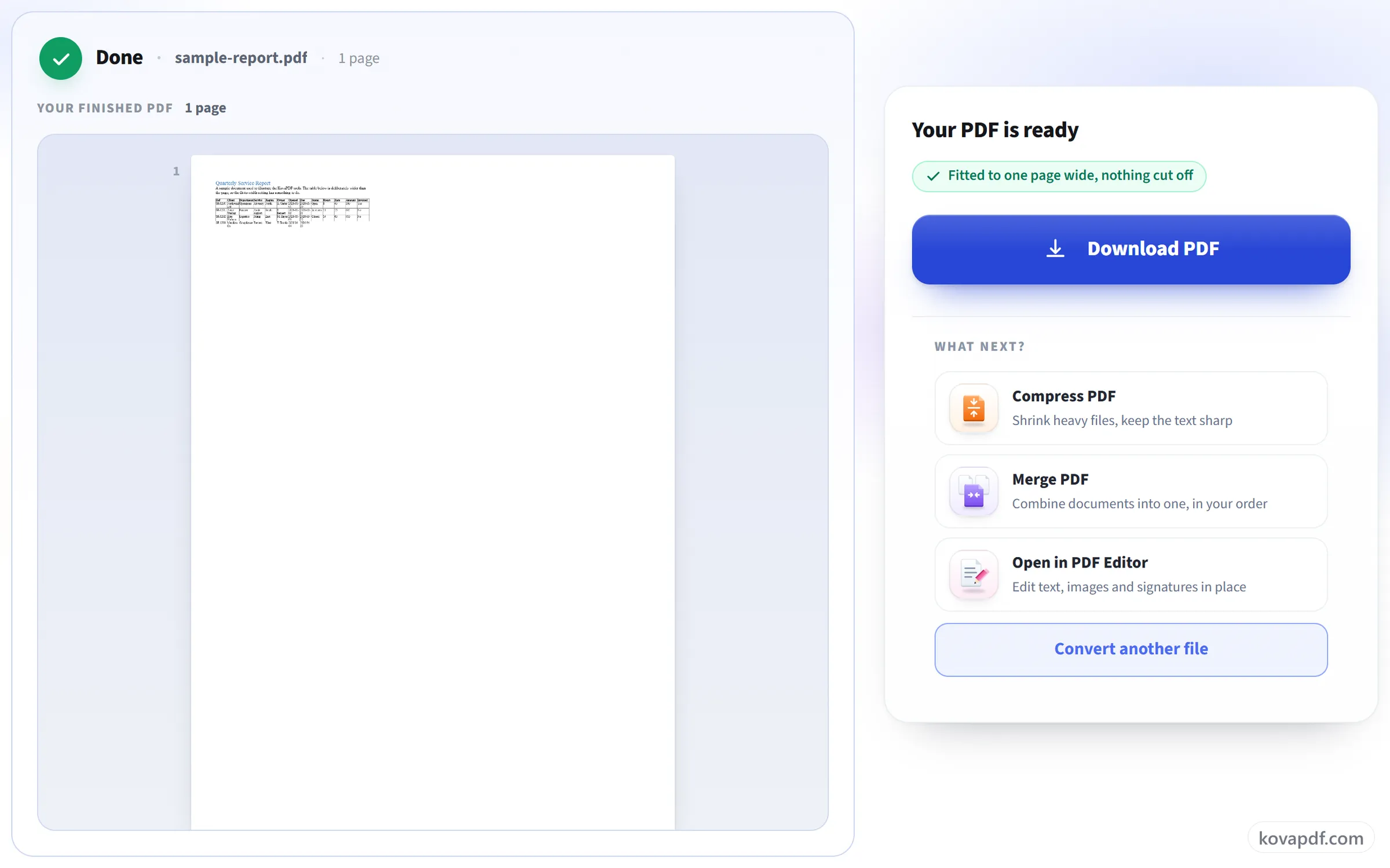
Download your PDF
The result keeps your fonts, images, tables and page breaks exactly as Word laid them out.
Frequently asked questions about Word to PDF
How do I convert a Word document to PDF?
Upload the .docx, or a .doc, .rtf, .odt or .txt file, change the page setup if you want to, and convert. The finished PDF is shown on the result screen so you can check it before you download it.
Will my formatting survive?
Yes. Fonts, headings, images, tables, headers and footers, page breaks and numbering all come across as written. We have fonts that match Calibri, Cambria, Arial and Times New Roman in size, so lines break where they did in Word.
My table is wider than the page. What happens?
With 'Fit everything on one page wide' switched on, which is the default, the table's columns are made narrower together until the whole table fits inside the page. Every column stays visible. Turn it off and the table behaves as it does in Word: anything past the right margin is cut off.
What if my document uses a font you don't have?
A similar font is used instead, so the text still appears, but lines can break in slightly different places. We have matching fonts for Calibri, Cambria, Arial, Times New Roman and Courier New, so documents that use those keep their line breaks.
Can I change the page size and margins?
Yes, for .docx and .odt files: A4, Letter, Legal or A3, portrait or landscape, and four margin widths. Leave page size and orientation on Auto to keep whatever the document already used. Older .doc, .rtf and .txt files convert with their own page setup.
Which files can I upload?
.docx, .doc, .rtf, .odt and .txt.
Can I convert a password-protected Word document?
No. A document that needs a password to open cannot be converted, and the conversion stops with a message saying the file may be password-protected or damaged. Remove the password in Word first, then upload it again.
Can I convert Word to PDF on my phone?
Yes. Pick the document from your phone's files in the browser. The conversion runs on our server, so you do not need Word installed on the phone.
Is it free?
Yes. Every tool works without paying and without an account. Files can be up to 200 pages and 80 MB, and a run that fails costs you nothing.
Do I need to create an account?
No. All tools work without signing in. An account raises your hourly allowance and lets you see what you have processed.
What happens to my file?
Your file stays on our server only for a short time while it is processed, then it is deleted. It is sent over an encrypted connection. We keep a record that the tool was used, but not the file name or what is in the file.
Word to PDF guides and articles
Step-by-step
Related tools
All PDF tools · 15 step-by-step guides · How your files are handled