Password Protect PDF
Lock a PDF with a password and decide what readers may do with it: printing, copying, editing and more. All free.
- Secure & private
- Works on any device
- Nothing to install
- A password to open it
- Printing and copying controlled
- Editing and extraction too
- Nothing else is changed
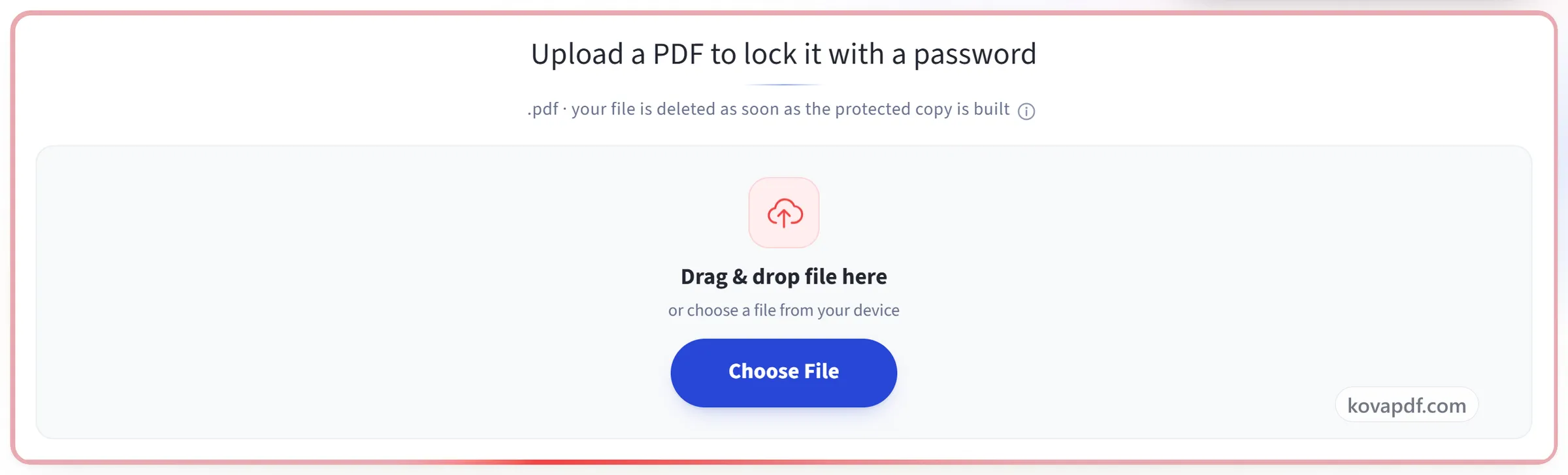
Upload a PDF to lock it with a password
.pdf · your file is deleted as soon as the protected copy is built
Drag & drop file here
or choose a file from your device
Everything Protect PDF can do
Lock a PDF with a password and say what a reader may do with it once it is open. Free, in your browser, every control included.
The password
- AES-256 encryption, or AES-128 for an older reader
- A password that is needed to open the file at all
- A strength meter that rates it as you type
- Reveal both boxes to check they match
- A separate owner password that lifts the restrictions
Printing
- Leave printing allowed at full quality
- Allow draft-quality printing only
- Mark printing as not allowed
Usage restrictions
- Choose whether readers may copy text and images
- Choose whether the page contents can be edited
- Choose whether comments and mark-up are allowed
- Choose whether form fields can be filled in
- Choose whether pages can be inserted, deleted or rotated
- Choose whether assistive software may read it aloud
What comes back
- One encrypted PDF, with every page kept
- A summary naming each restriction you set
- Your password is used once and never stored
How it works
Protect PDF in three steps
Upload your PDF
Drag a .pdf onto the panel, or click it to pick one. Your file and password are used once and then deleted.
Set the password and restrictions
The password is real encryption. Nothing opens the file without it. The restrictions below it are flags that Acrobat and most desktop readers honour but Chrome's viewer ignores, and the screen says so next to each one.
Download your protected PDF
The result says which cipher was used and exactly what was marked as not allowed. Keep the password safe. It cannot be recovered.
Protect PDF: a visual walkthrough
AES-256 encryption, and every permission control free.
Upload your PDF
Drag a .pdf onto the panel, or click it to pick one. Your file and password are used once and then deleted.
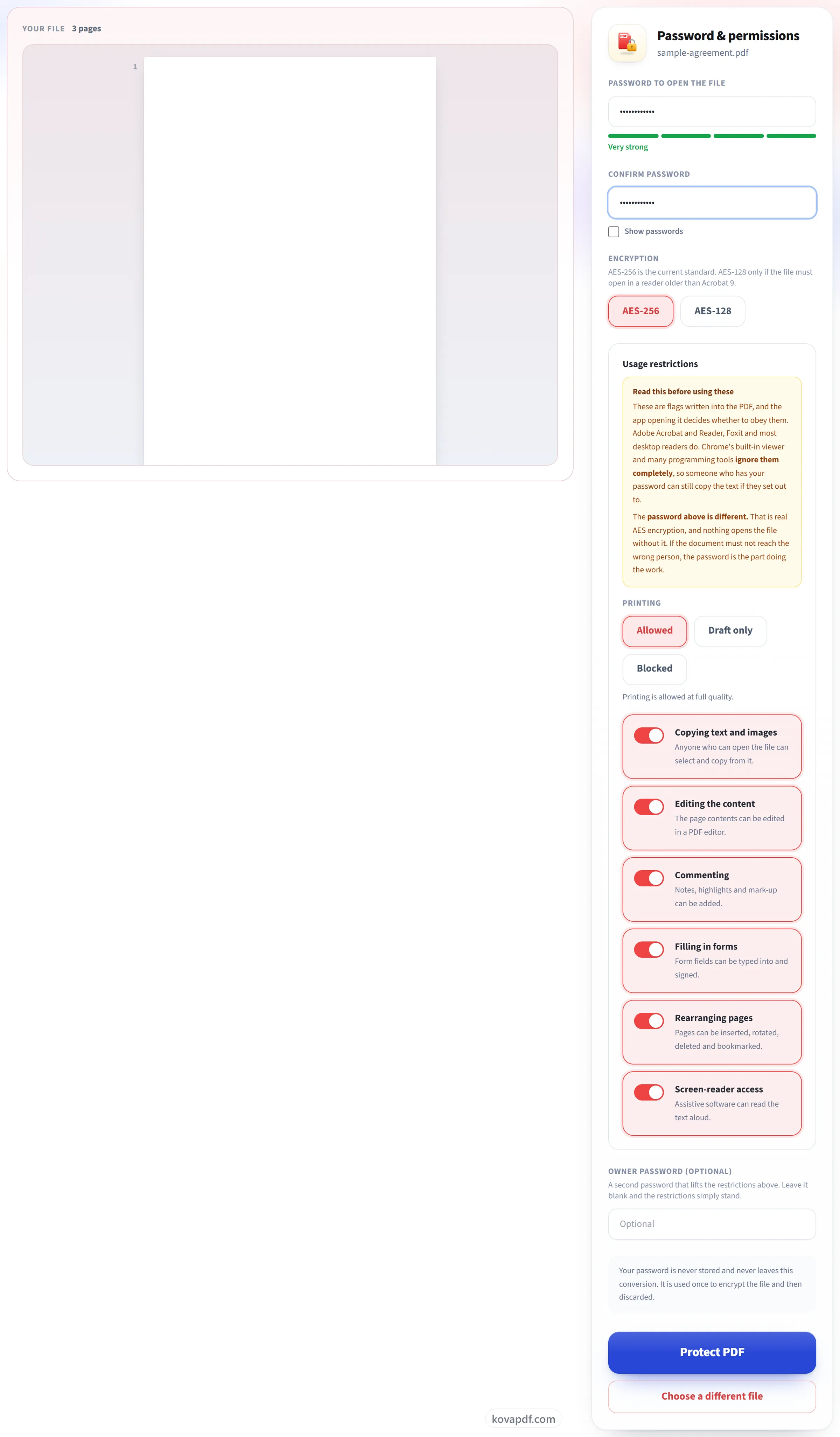
Set the password and restrictions
The password is real encryption. Nothing opens the file without it. The restrictions below it are flags that Acrobat and most desktop readers honour but Chrome's viewer ignores, and the screen says so next to each one.
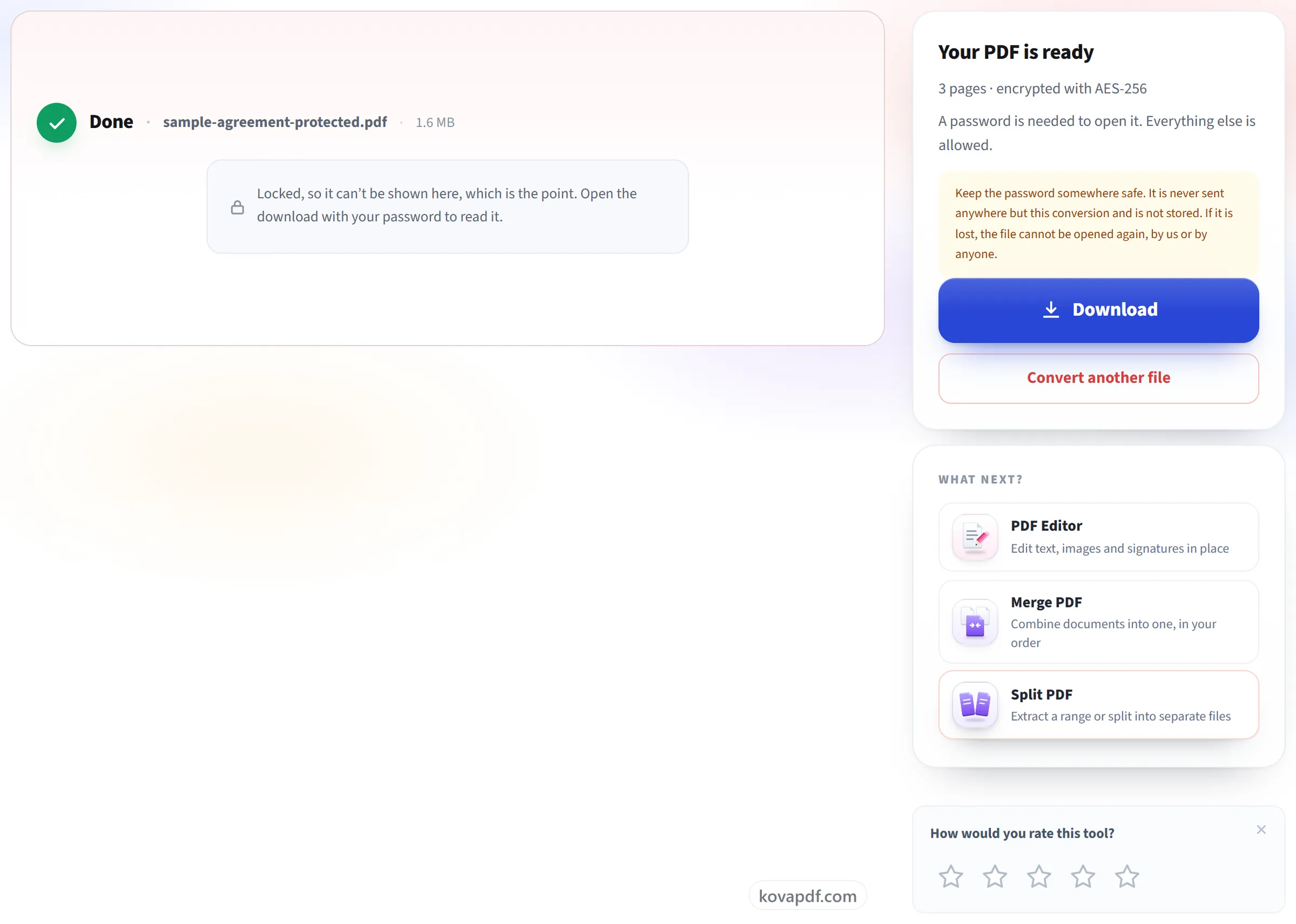
Download your protected PDF
The result says which cipher was used and exactly what was marked as not allowed. Keep the password safe. It cannot be recovered.
Frequently asked questions about Protect PDF
How do I password protect a PDF?
Choose your PDF, type the password that will be needed to open it (at least 4 characters) and type it again to confirm. AES-256 encryption is used by default. If you also want to limit printing, copying or editing, set those permissions and an owner password, then download the protected file.
How strong is the encryption?
AES-256, the method the current PDF standard recommends. If the file must open in a reader older than Acrobat 9, you can choose AES-128. We don't offer RC4, an old method that is no longer safe.
Can I control printing and copying, not just opening?
Yes, and all of it is free. You can control printing (allowed, draft quality only, or blocked), copying, editing, commenting, form filling, rearranging pages and screen-reader access.
What is the owner password for?
It is a second password that lifts the restrictions for whoever has it. The first password is the one needed to open the file. Set an owner password if you may want to change the restrictions later, and make it different from the open password. If you leave it blank, KovaPDF sets a random owner password that nobody is told, so the restrictions stay in place.
Will the password work in every PDF reader?
Yes, in current ones. Adobe Acrobat and Reader, Chrome, Edge, Firefox, Apple Preview and Foxit all open an AES-256 file once the password is typed. Only readers older than Acrobat 9 need AES-128, which you can choose instead.
Can I add a password to a PDF that already has one?
Not directly. A PDF that is already encrypted is refused. Remove its protection first with Unlock PDF, then protect it again with the new password.
Can you recover my password if I lose it?
No, and nobody else can either. We use the password only to protect the file and never store it. If you lose it, the file can't be opened again, so keep it somewhere safe.
I blocked copying, but I can still copy the text. Is it broken?
No. The restriction is saved in your file correctly, and in Acrobat you'll see Copy and Select All greyed out. But each PDF reader decides whether to follow it. Acrobat, Reader, Foxit and most desktop readers do. Chrome's viewer and text-extraction programs don't. So someone who has the password can still get the text out if they try.
Then what stops someone reading my PDF?
The password. The file is encrypted, and no reader, tool or website can open it without the password. If the document must not reach the wrong person, rely on the password. The printing and copying limits only apply to people who already have it.
Is it free?
Yes. Every tool works without paying and without an account. Files can be up to 200 pages and 80 MB, and a run that fails costs you nothing.
Do I need to create an account?
No. All tools work without signing in. An account raises your hourly allowance and lets you see what you have processed.
What happens to my file?
Your file stays on our server only for a short time while it is processed, then it is deleted. It is sent over an encrypted connection. We keep a record that the tool was used, but not the file name or what is in the file.
Protect PDF guides and articles
Related tools
All PDF tools · 15 step-by-step guides · How your files are handled