Compress PDF
Make a PDF file smaller for email, upload or storage. Text stays sharp at every level. Only the images inside are resampled. To cut the number of pages instead, use SmartShrink.
- Free to use
- Works on any device
- Deleted after processing
- Text stays vector-sharp
- Sized for email
- Every page kept
- The original is untouched
Make a heavy PDF smaller
Text stays sharp at every level · your upload is deleted as soon as the smaller file is built
Drag & drop file here
or choose a file from your device
Everything Compress PDF can do
Make a PDF file lighter for email, upload or storage by re-encoding the images inside it, while every page stays. Free, in your browser.
How hard it squeezes
- Light: barely touches image quality, so the document stays print-ready
- Recommended: clearly smaller, still good on screen and on paper
- Strong: the smallest result, made for photo-heavy documents
- Only the images inside are resampled
What stays sharp
- Text stays vector text, not a picture of text
- Fonts stay embedded, so it opens the same everywhere
- Line art and diagrams keep their clean edges
- Every page kept, and the page count stays the same
- Page size, orientation and order all unchanged
The size you end up with
- The before and after size, both shown on the result screen
- The percentage saved, measured from the two real files
- Your original file stays exactly as it is on your computer
- One compressed PDF to download, named after your document
How it works
Compress PDF in three steps
Upload your PDF
Drag your file onto the upload panel, or click it to pick one from your device. Nothing is sent anywhere until you start the job, and the working copy is deleted the moment it finishes.
Start the compression
Images are resampled and redundant data is stripped while the text stays vector-sharp, so the document still prints cleanly at full size.
See the saving and download
You are shown the before and after size and the percentage saved, so you can judge whether the trade was worth it. Your original stays untouched on your own device either way.
Compress PDF: a visual walkthrough
Make a heavy document small enough to email, without turning the text to mush.
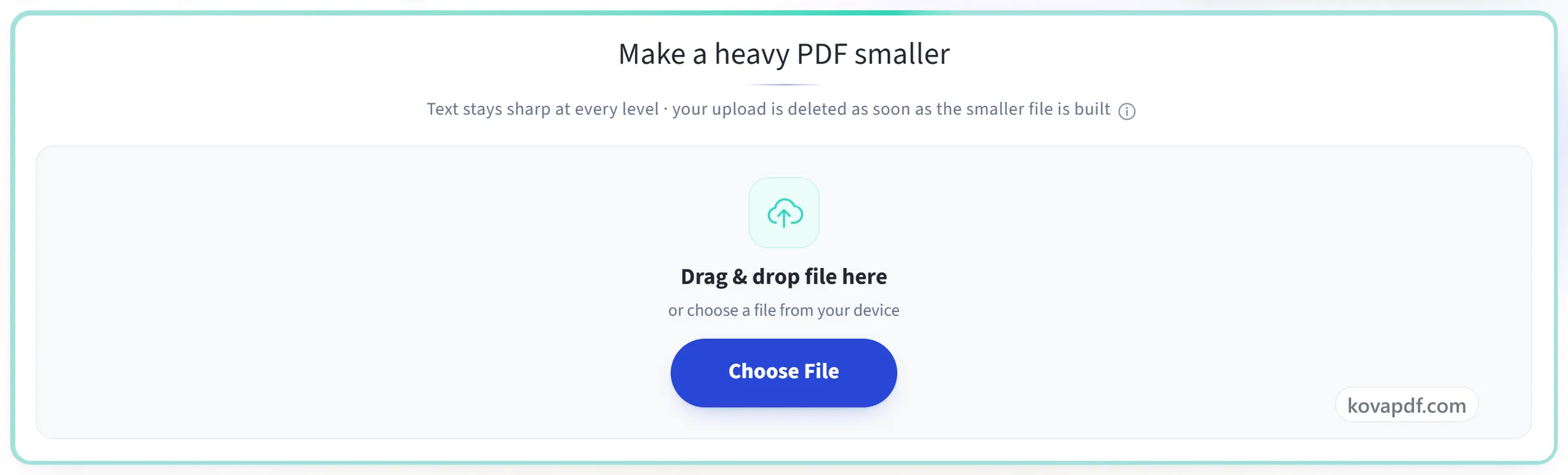
Upload your PDF
Drag your file onto the upload panel, or click it to pick one from your device. Nothing is sent anywhere until you start the job, and the working copy is deleted the moment it finishes.
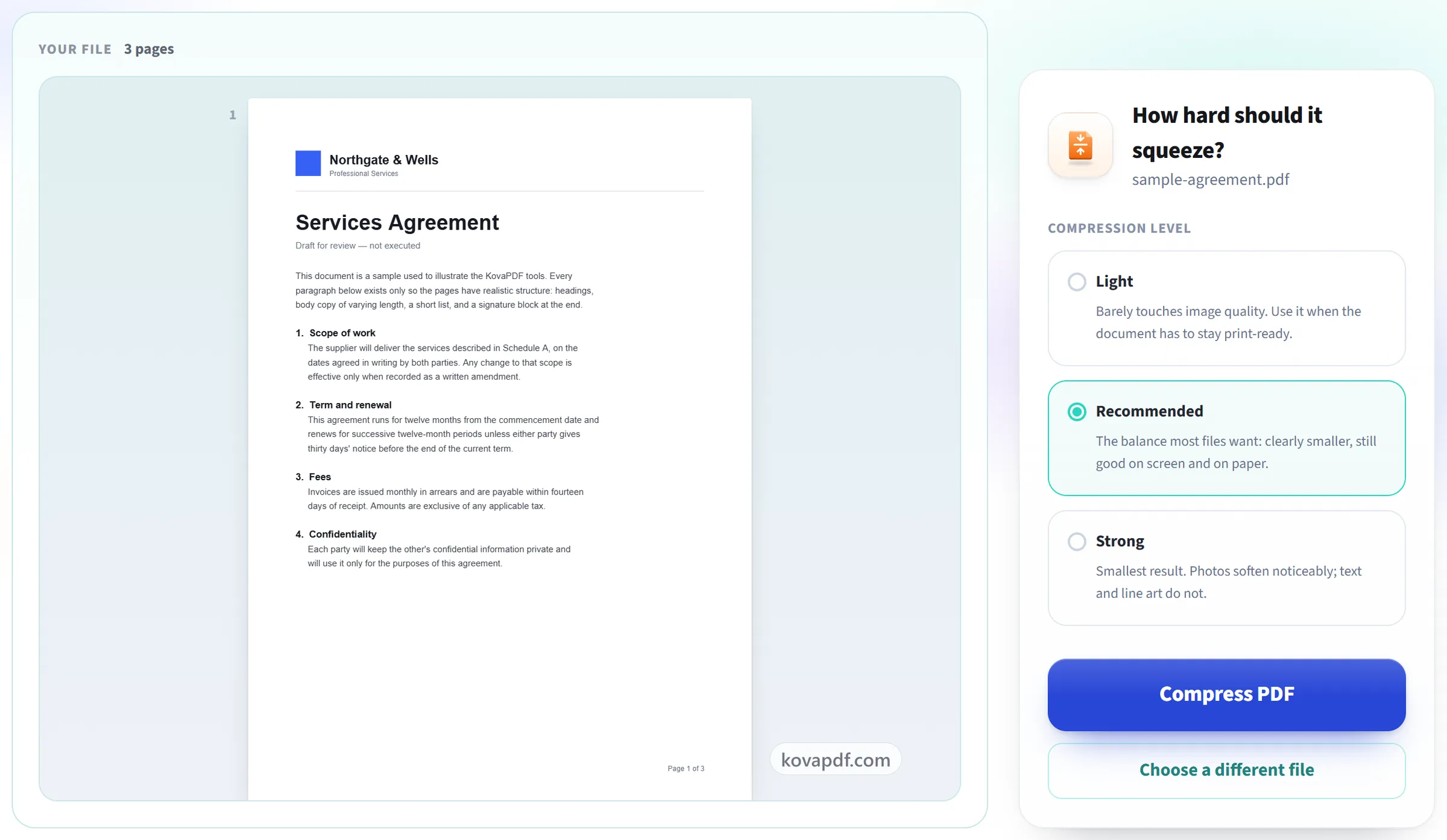
Start the compression
Images are resampled and redundant data is stripped while the text stays vector-sharp, so the document still prints cleanly at full size.
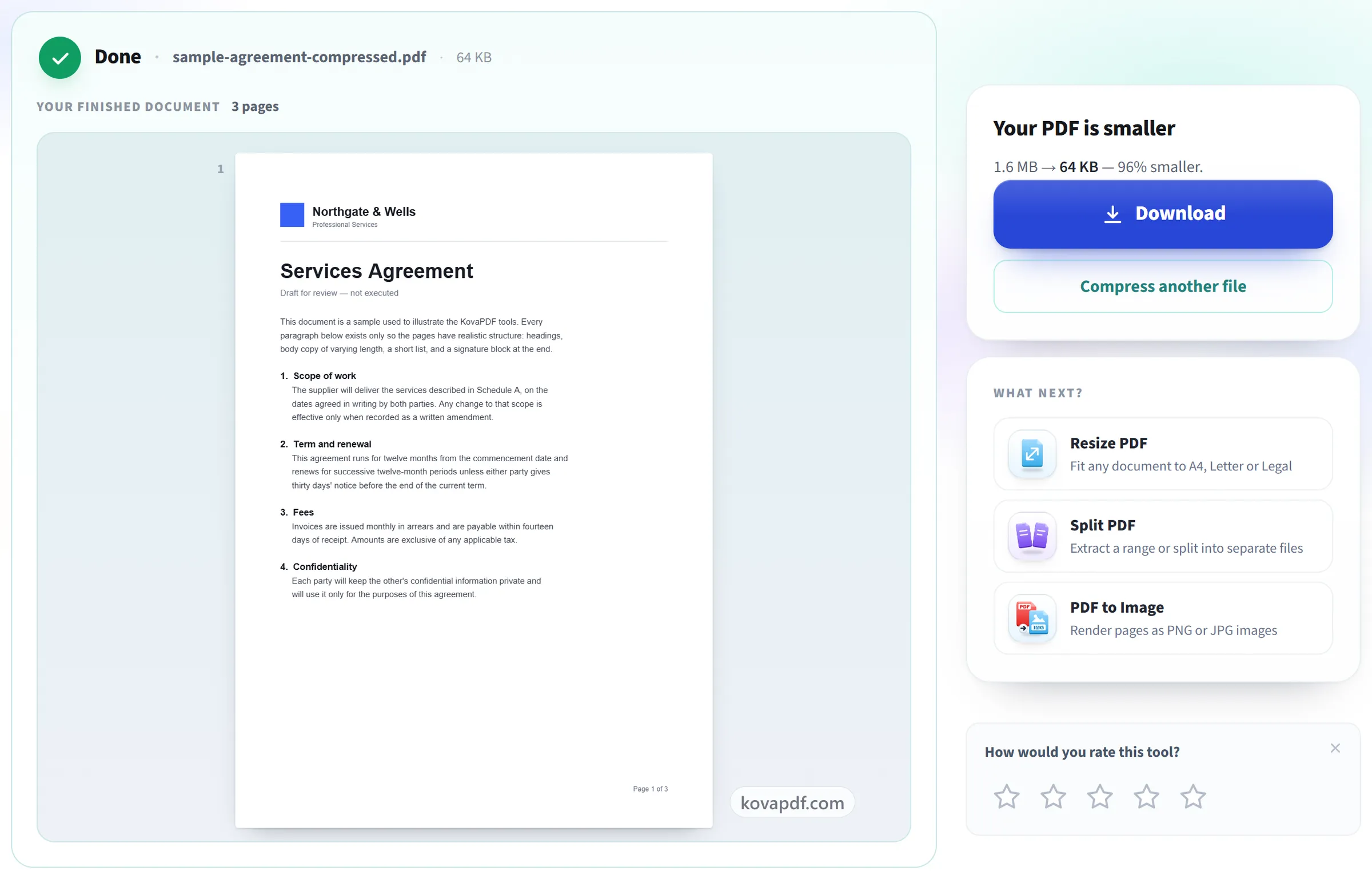
See the saving and download
You are shown the before and after size and the percentage saved, so you can judge whether the trade was worth it. Your original stays untouched on your own device either way.
Frequently asked questions about Compress PDF
How do I compress a PDF without losing quality?
Choose Light. It keeps images at about 300 DPI, which is print quality, so they barely change, and it still makes the file smaller. Text and line art never lose quality at any level, so they stay sharp whichever level you pick.
How much smaller will my file get?
It depends on what is in the file. A PDF made from photos or scans usually shrinks a lot, because those images can be made smaller. A text-only PDF is already close to its smallest size and may barely change. The result screen shows the size before and after.
What is the difference between Light, Recommended and Strong?
They set how far images are scaled down. Light keeps them at about 300 DPI, fit for print. Recommended brings them to about 150 DPI, which is clear on screen and fine on an office printer. Strong goes to about 72 DPI for the smallest file, and photos soften visibly.
How do I get a PDF under a size limit, like 2 MB for an upload form?
There is no target-size setting, so step down the levels: try Recommended, then Strong, and check the new size on the result screen each time. If Strong is still too big, the page count is usually the problem rather than the images. Split the file, or use SmartShrink to fit the content onto fewer pages.
Why is my PDF still large after compressing?
Compression mostly shrinks images. A long document made of text, one that was already optimised, or one full of embedded fonts has little left to remove. When that happens, the result screen says the file was already about as small as it gets.
Will the text become blurry?
No. Text in a PDF is not stored as an image, so it stays sharp at any zoom and prints at full quality. Only the photos and scans inside the file are made smaller.
What if the compressed file is bigger?
This can happen with files that were already compressed, because the file is rebuilt. The tool tells you when it happens. Keep your original in that case, because it is the better copy.
Can I compress a PDF on my phone?
Yes. Open the page in your phone's browser, pick the PDF from your files, choose a level and download the smaller copy. It works the same way on Android and iPhone, with nothing to install.
Is it free?
Yes. Every tool works without paying and without an account. Files can be up to 200 pages and 80 MB, and a run that fails costs you nothing.
Do I need to create an account?
No. All tools work without signing in. An account raises your hourly allowance and lets you see what you have processed.
What happens to my file?
Your file stays on our server only for a short time while it is processed, then it is deleted. It is sent over an encrypted connection. We keep a record that the tool was used, but not the file name or what is in the file.
Compress PDF guides and articles
Step-by-step
Related tools
All PDF tools · 15 step-by-step guides · How your files are handled