Redact PDF
Black out names, numbers, signatures and photos, and remove them from the file itself so they can't be uncovered. Select text, draw a box or search the whole document, review every mark, then apply.
- Secure & private
- Works on any device
- Nothing to install
- Removed, not just covered
- Text, images and drawings
- Search every page at once
- Checked before you download
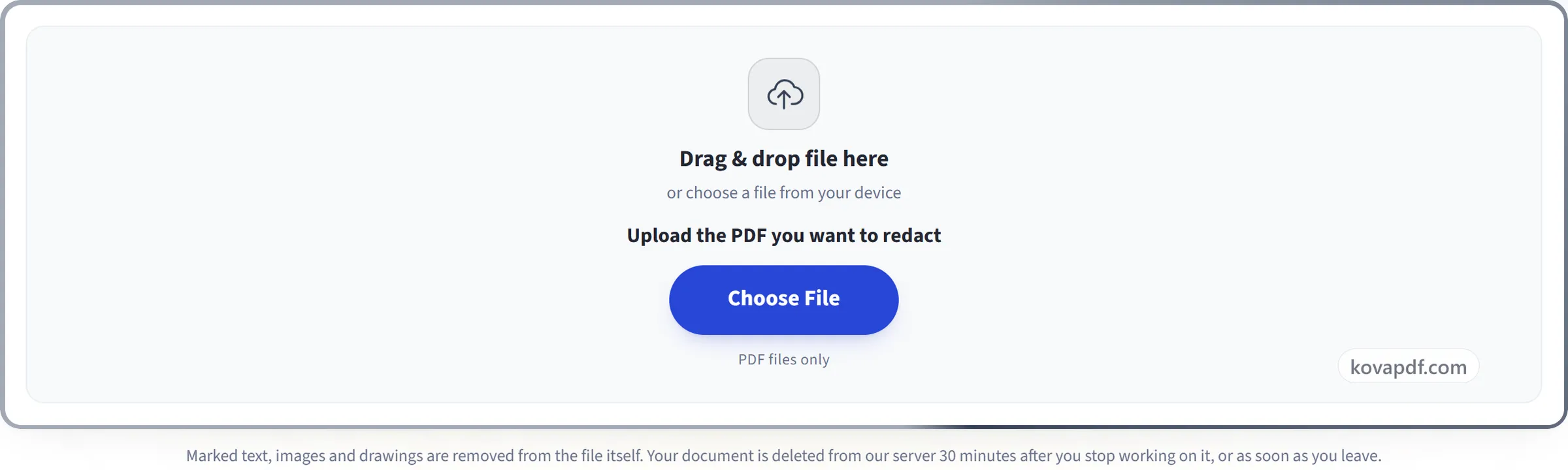
Drag & drop file here
or choose a file from your device
Upload the PDF you want to redact
PDF files only
Marked text, images and drawings are removed from the file itself. Your document is deleted from our server 30 minutes after you stop working on it, or as soon as you leave.
Everything Redact PDF can do
Permanently remove names, numbers, signatures and pictures from a PDF. What you mark is taken out of the file itself, not hidden under a box.
Marking
- Select text on the page, or double-click a word
- Draw a box over anything: photos, signatures, QR codes, stamps, parts of a scan
- Search a word, phrase or number across every page, with match case and whole words
- Find every email address, phone number, card or account number, IBAN, date or web address at once
- Review each search result, untick the ones to keep, then mark the rest
Before you apply
- Every mark is listed by page, and can be moved, resized or removed
- Undo and redo with Ctrl+Z and Ctrl+Y
- Choose black, white or grey boxes, with an optional label such as REDACTED
- Nothing changes until you review the list and apply
What is removed
- The text under each mark, including the invisible text layer of an OCR'd scan
- The image pixels under each mark, in photos and in scanned pages
- Drawn lines and shapes under each mark
- Comments, links and form-field values under each mark
- Optional: document properties, attachments, scripts, bookmarks, hidden layers and content outside the page
Scanned documents
- Draw boxes on a scanned page and the pixels are removed from the scan
- Recognise the text on scanned pages so search can find it there too
Checked before you download
- The finished file is read again to confirm no text is left under any mark
- Tells you where a searched word still appears, such as another page or the document properties
- Files are deleted from our server within 30 minutes
How it works
Redact PDF in three steps
Upload your PDF
Drag the .pdf onto the panel, or click it to pick one. Scanned documents work too.
Mark everything that must go
Select text, draw a box over a photo or signature, or search the whole document for a name, a number or every email address at once. Search results are suggestions until you tick them and press Mark; every mark stays pending, with undo, until you apply.
Review, apply and download
Choose how the boxes look and what hidden information to remove too, then apply. The finished file is checked for anything left under a mark before you download it.
Redact PDF: a visual walkthrough
Mark what must go, review it, and get a file it has really been removed from.
Upload your PDF
Drag the .pdf onto the panel, or click it to pick one. Scanned documents work too.
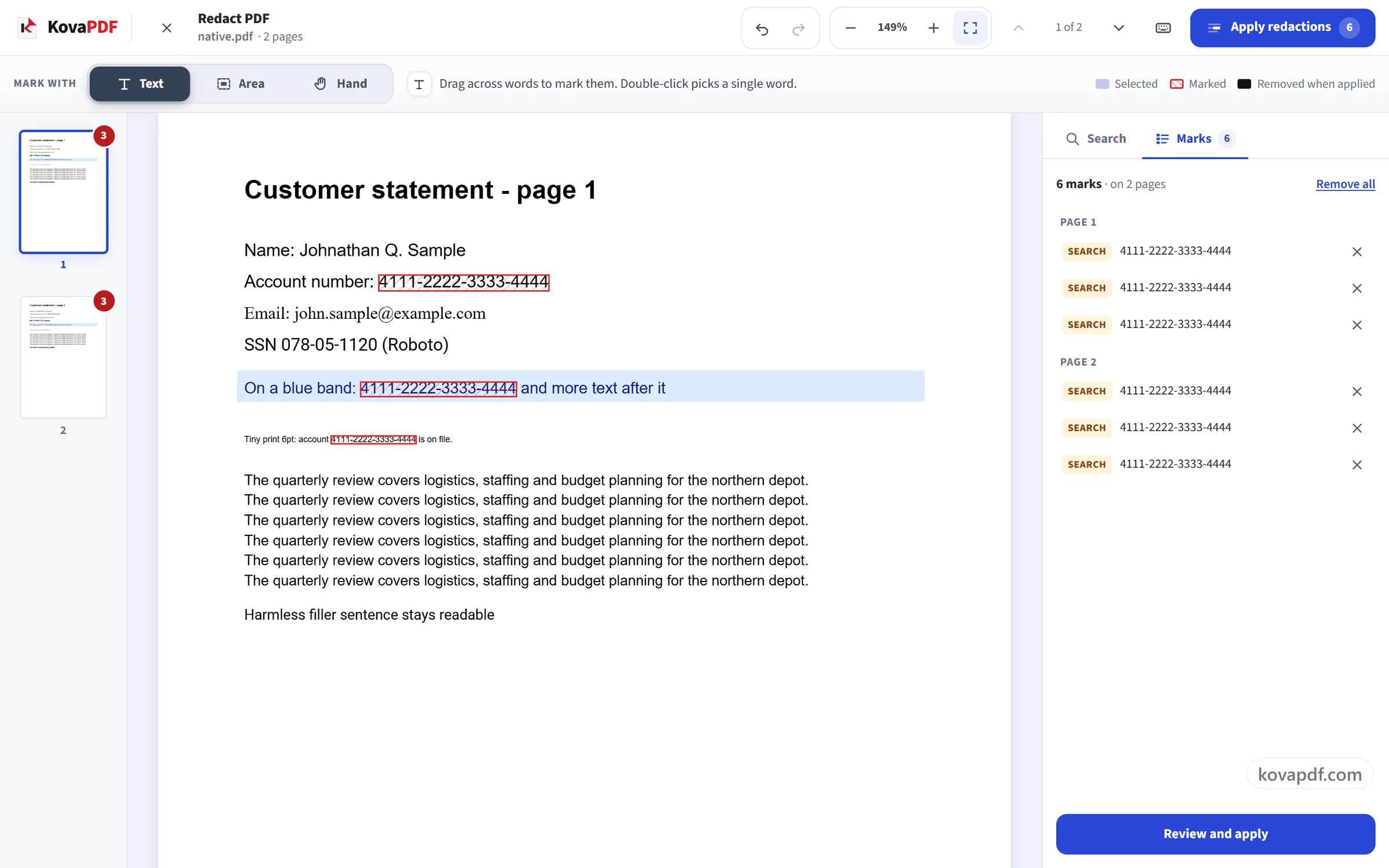
Mark everything that must go
Select text, draw a box over a photo or signature, or search the whole document for a name, a number or every email address at once. Search results are suggestions until you tick them and press Mark; every mark stays pending, with undo, until you apply.
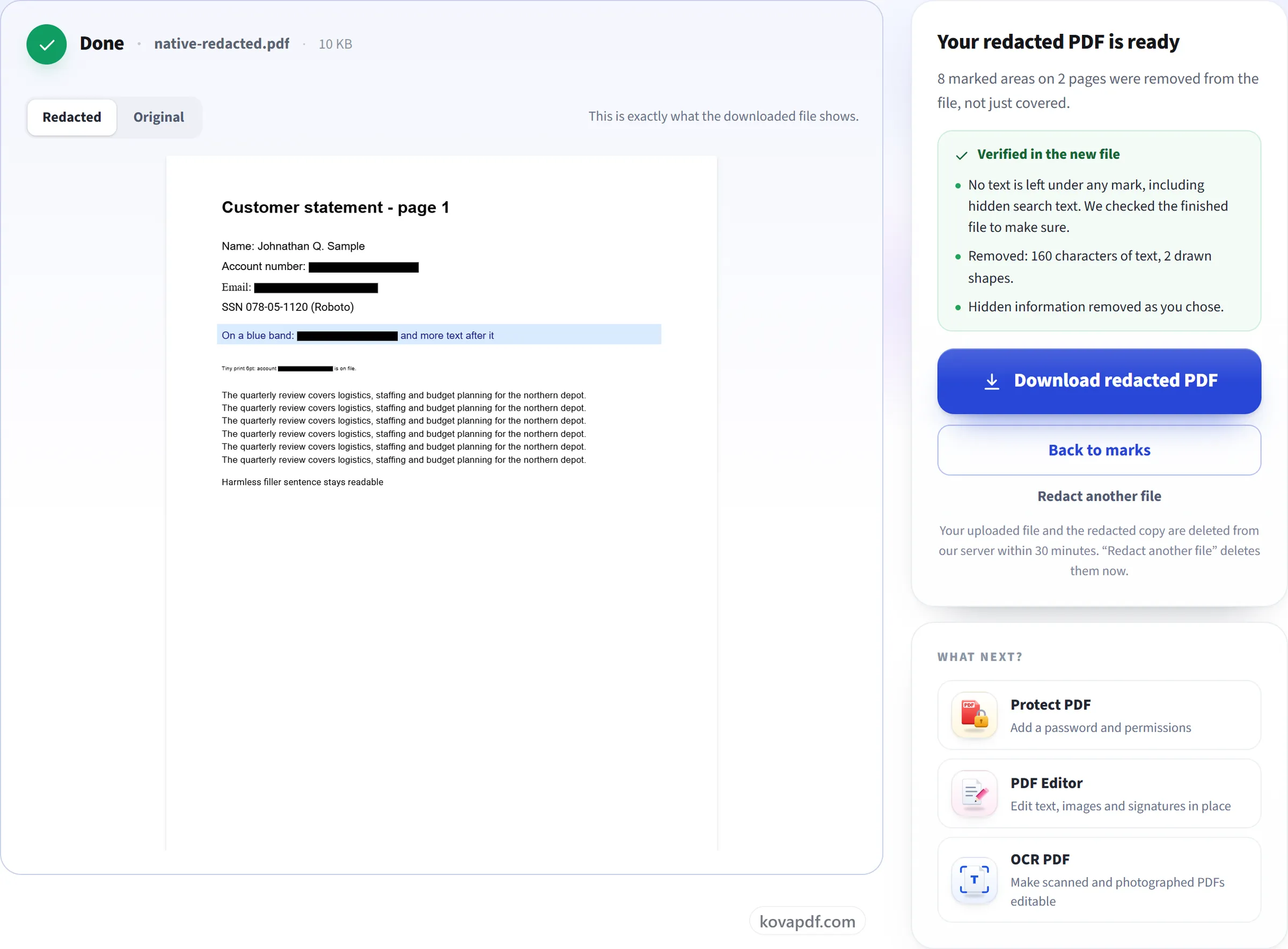
Review, apply and download
Choose how the boxes look and what hidden information to remove too, then apply. The finished file is checked for anything left under a mark before you download it.
Frequently asked questions about Redact PDF
How do I redact a PDF?
Open your PDF, then select text or draw a box over anything that has to go; to catch every place a word appears, search for it and mark the results. Review the list of marks and apply. Everything under the marks is removed from the file, and you download the redacted copy.
Is the text really removed, or just covered with a black box?
Removed. The text under each mark is taken out of the page, including hidden text in a scanned PDF that was run through OCR. Image pixels, shapes, links, comments and form field values under the mark are removed too. The black box only shows where something was. Before you can download the file, we check it again to make sure no text is left under any mark.
Can I redact a scanned PDF?
Yes. Draw a box over anything on a scanned page and the pixels under it are overwritten in the scan itself. Scanned pages are found and their text is recognised as soon as the file opens, so search finds words on them too. If the scan already has a hidden OCR text layer, the text under your box is removed from that as well.
Can I redact every email address or phone number at once?
Yes. Built-in searches find email addresses, phone numbers, card and account numbers, IBANs, dates, ID numbers written like 000-00-0000, and web addresses on every page. The results start ticked, so you untick any you want to keep and mark the rest in one step.
Can I use a white box or add a label like "REDACTED"?
Yes. The boxes can be black, white or grey, and you can print a short label such as REDACTED inside each one. Either way the content underneath is removed; the colour and label only change how the box looks.
Can I change my mind before applying?
Yes. Every mark stays pending until you apply: you can move or resize a box, remove any mark, and undo or redo with Ctrl+Z and Ctrl+Y. Search results are only suggestions until you tick them and press Mark. Nothing in your file changes until you review the list and apply.
Can a redaction be undone after I download the file?
No. What you marked is not in the new file, so nobody can get it back. Keep your original if you might need it. The tool never changes the file on your device.
What does "Also remove hidden information" remove?
Only what you tick: document properties (title, author, keywords and the XMP metadata), content that sits outside the visible page, scripts and actions, comments and markup, attached files, bookmarks, and hidden layers. Earlier versions saved inside the file and page thumbnails are always discarded. After applying, the result screen tells you if a word you searched for still appears anywhere, such as another page or the document properties.
Why did one of my pages turn into an image?
Rarely, a page is built in a way the tool can't safely take apart, for example because of an unusual font. So that no marked word can survive, that page is turned into an image with the boxes burnt in, and the result screen says which page it was. The rest of the document keeps its real, searchable text.
What happens to my file?
Redaction runs on our server, so the file is uploaded. It is kept only while you work, for up to 30 minutes, and it is deleted straight away when you choose "Redact another file" or leave the page. It is never used for anything else. A password-protected PDF has to be unlocked first with Unlock PDF.
Is it free?
Yes. Every tool works without paying and without an account. Files can be up to 200 pages and 80 MB, and a run that fails costs you nothing.
Do I need to create an account?
No. All tools work without signing in. An account raises your hourly allowance and lets you see what you have processed.
Redact PDF guides and articles
Related tools
All PDF tools · 15 step-by-step guides · How your files are handled