Rotate PDF
Fix sideways or upside-down pages, across the whole document or page by page, and save the correction directly into your PDF.
- Free to use
- Works on any device
- Deleted after processing
- Written into the file
- Not just into your viewer
- One page or all of them
- Quarter turns either way
Turn sideways pages the right way up
The rotation is written into the file itself, so it stays fixed in every viewer · your upload is deleted as soon as the new PDF is built
Drag & drop file here
or choose a file from your device
Everything Rotate PDF can do
Turn sideways or upside-down pages the right way up, saved into the PDF itself rather than just into your viewer. Free, in the browser.
Which way to turn
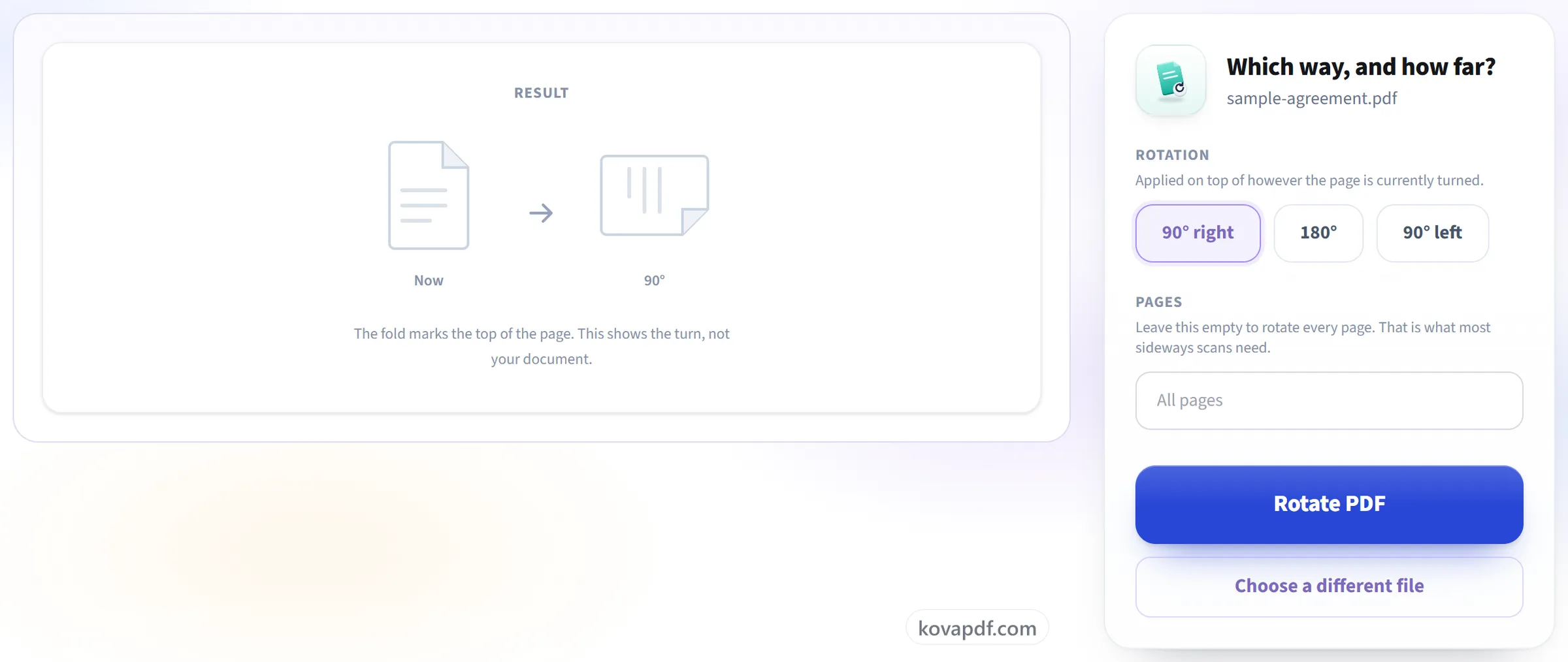
- 90° right, 180°, or 90° left
- The turn is applied on top of however the page sits now
- A diagram of the turn, which follows the angle you pick
Which pages turn
- Every page at once, or only the pages you name
- Single pages and ranges together: 1-3, 7, 12-14
- Pages you leave out keep the way they are now
What you get back
- The rotation written into the PDF, so every viewer opens it upright
- Text stays selectable, and images stay where they sit on the page
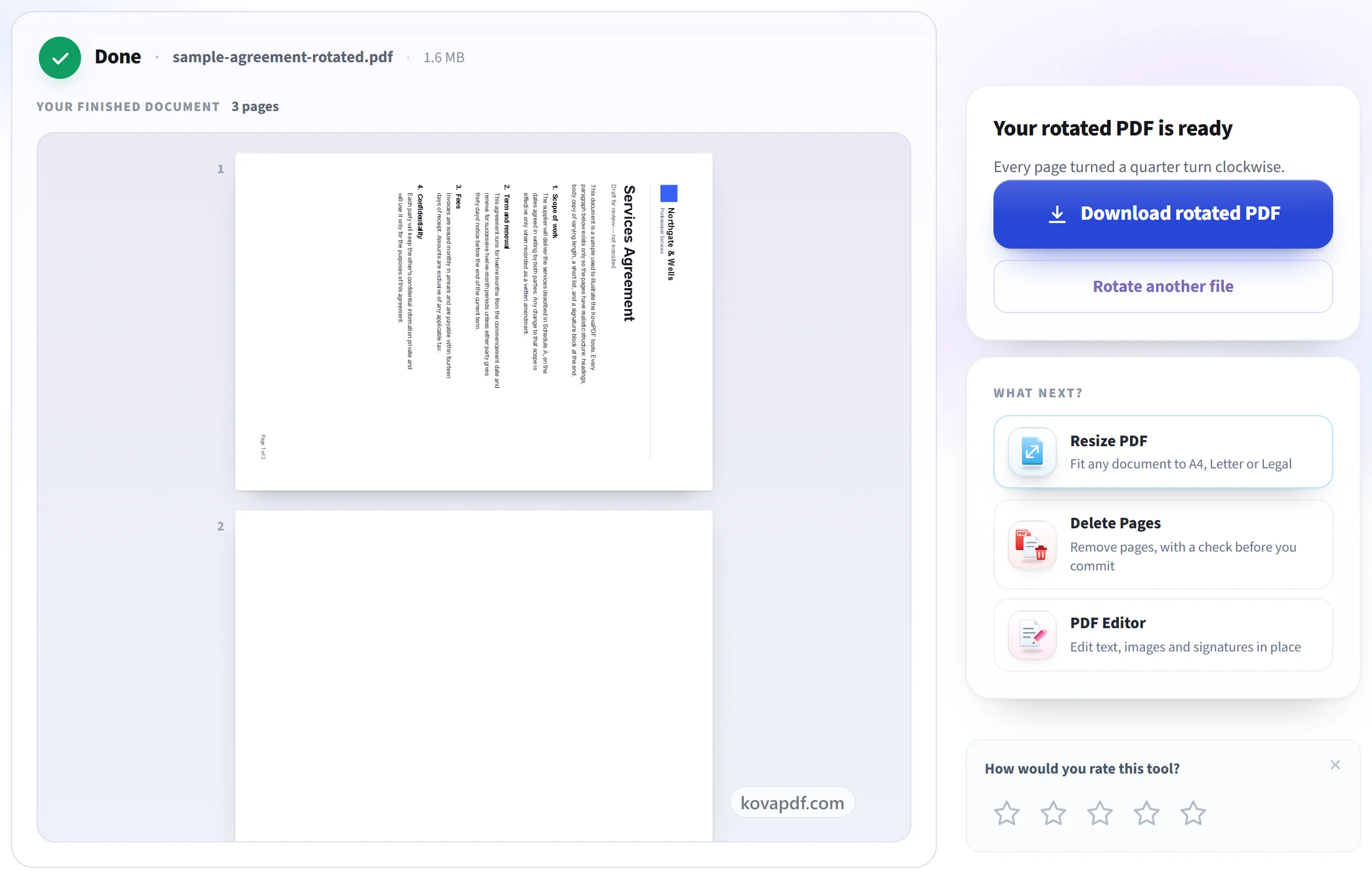
- The result screen says how many pages turned, and which way
- One rotated PDF, named after your document
Seeing the document
- The whole file shown on screen before you commit to a turn
- Nothing but the page angle is changed
- Rotate the next file straight from the result screen
How it works
Rotate PDF in three steps
Upload your PDF
Drag your file onto the upload panel, or click it to pick one from your device. Nothing is sent anywhere until you start the job, and the working copy is deleted the moment it finishes.
Choose the rotation
Turn the whole document or just the pages you name, by 90°, 180° or 270°.
Rotate and download
The rotation is written into the file, so it opens the right way up in every viewer rather than only in yours.
Rotate PDF: a visual walkthrough
Fix pages that were scanned sideways or upside down, and keep the fix permanently.
Upload your PDF
Drag your file onto the upload panel, or click it to pick one from your device. Nothing is sent anywhere until you start the job, and the working copy is deleted the moment it finishes.
Choose the rotation
Turn the whole document or just the pages you name, by 90°, 180° or 270°.
Rotate and download
The rotation is written into the file, so it opens the right way up in every viewer rather than only in yours.
Frequently asked questions about Rotate PDF
Is the rotation permanent?
Yes. The turn is saved in the file, so the document opens the right way up in every viewer.
Can I rotate only some pages?
Yes. Name the pages to rotate, or apply the rotation to the whole document.
Which way can I turn the page?
A quarter turn clockwise, a half turn, or a quarter turn anticlockwise (90, 180 or 270 degrees). A page that was scanned upside down needs the half turn. One that came out on its side needs a quarter turn.
Does rotating change the file size or the text?
No. The page is turned without being redrawn, so the text stays selectable, nothing is compressed again, and the file size stays about the same.
Why does my PDF open sideways again after I rotate it?
The rotate button in most viewers only turns your view of the page, not the file, so the next time it opens it is sideways again. Rotating here writes the turn into the PDF itself, so the downloaded copy opens the right way up in any viewer.
Can I rotate different pages in different directions?
Not in one run, because each run applies one turn to the pages you name. Rotate the first group, then upload the result and rotate the next group the other way.
Is it free?
Yes. Every tool works without paying and without an account. Files can be up to 200 pages and 80 MB, and a run that fails costs you nothing.
Do I need to create an account?
No. All tools work without signing in. An account raises your hourly allowance and lets you see what you have processed.
What happens to my file?
Your file stays on our server only for a short time while it is processed, then it is deleted. It is sent over an encrypted connection. We keep a record that the tool was used, but not the file name or what is in the file.
Rotate PDF guides and articles
Related tools
All PDF tools · 15 step-by-step guides · How your files are handled