Drag the .pdf onto the panel or click it to pick one; you sign in only when you send. A Word file or a photo works too. It is turned into a PDF first.
Signaturely alternative
Drop your PDFs here
PDFs · up to 50 MB · up to 200 pages · up to 30 files
PDF, Word or image files · up to 15 MB each · several make one envelope
On your computer? Get the Windows appOn your phone? Get the phone app
Upload the agreement, place the recipient's fields and review the request before sending. Upload the document you want signed.
- Free to use
- Works on any device
- Nothing to install
- One or many signers
- In order or all at once
- See who opened and signed
- Certificate of completion
Why send it for signature instead of emailing the PDF?
What Signaturely says
Signaturely's own pages, in three facts
Prices checked: October 2026.
Preparation
Signaturely describes uploading a file or starting from a template, then adding required fields.
Source: signaturely.com, Super simple signatures homepage
Recipient journey
Its homepage says signers get an email link and are guided through required fields.
Source: signaturely.com, Super simple signatures homepage
Repeat work
It describes team template sharing, automatic reminders and centrally stored paperwork.
Source: signaturely.com, Super simple signatures homepage
Step by step
Request Signatures: a visual walkthrough
One or many signers, in order or all at once, and a signed copy with a certificate of completion for everyone.
Type each signer's name and email, and choose whether they sign in order. Then pick a signer and click Signature, Initials, Name, Date signed, Text or Checkbox to put that field on the page, and drag it into place. Every signer needs at least one signature field.
Add a message, choose when the link expires and whether to send reminders, and send. Each signer gets a private link by email; you can see who has opened and signed it under Sent for signature, and everyone receives the signed PDF when the last person signs.

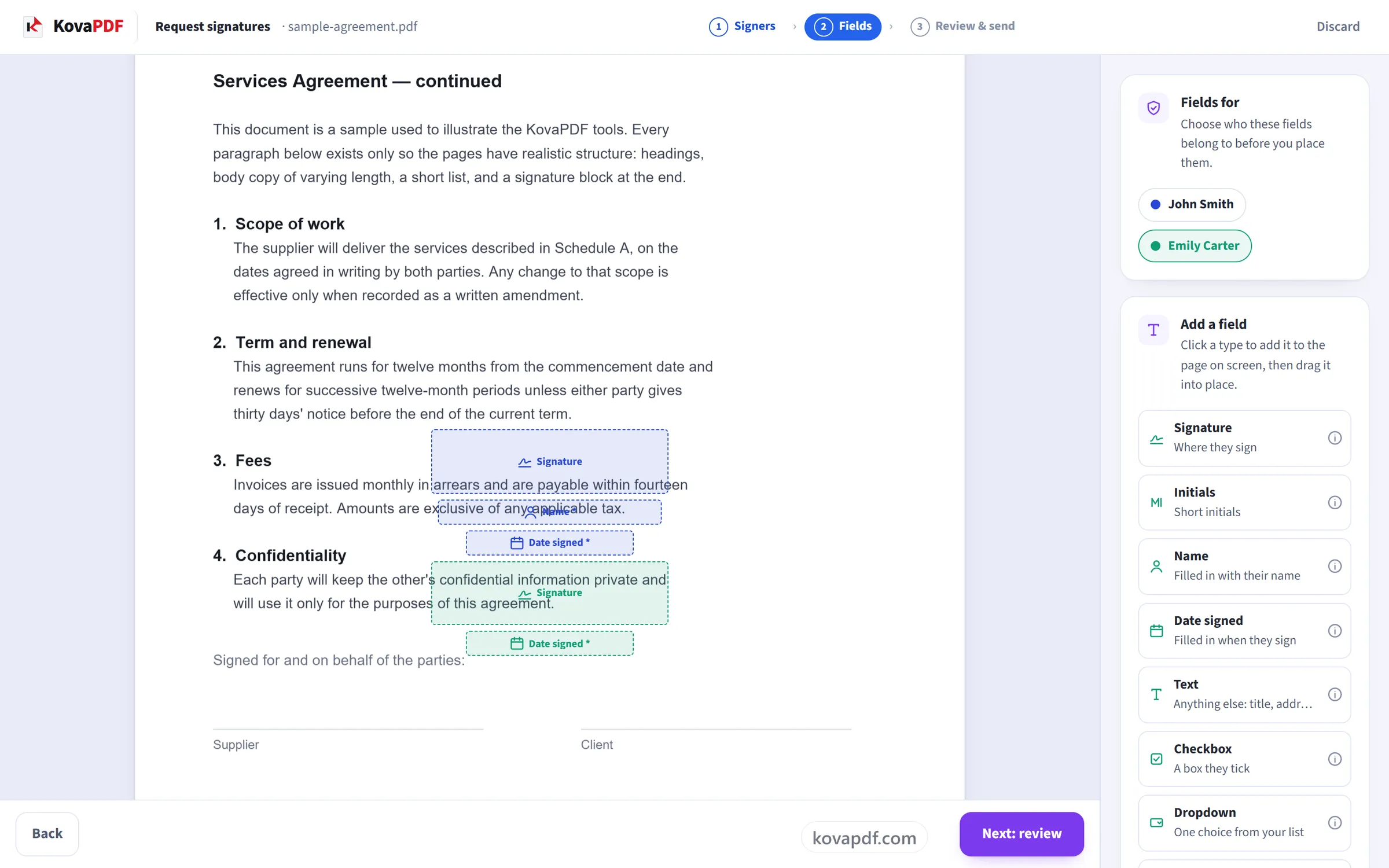
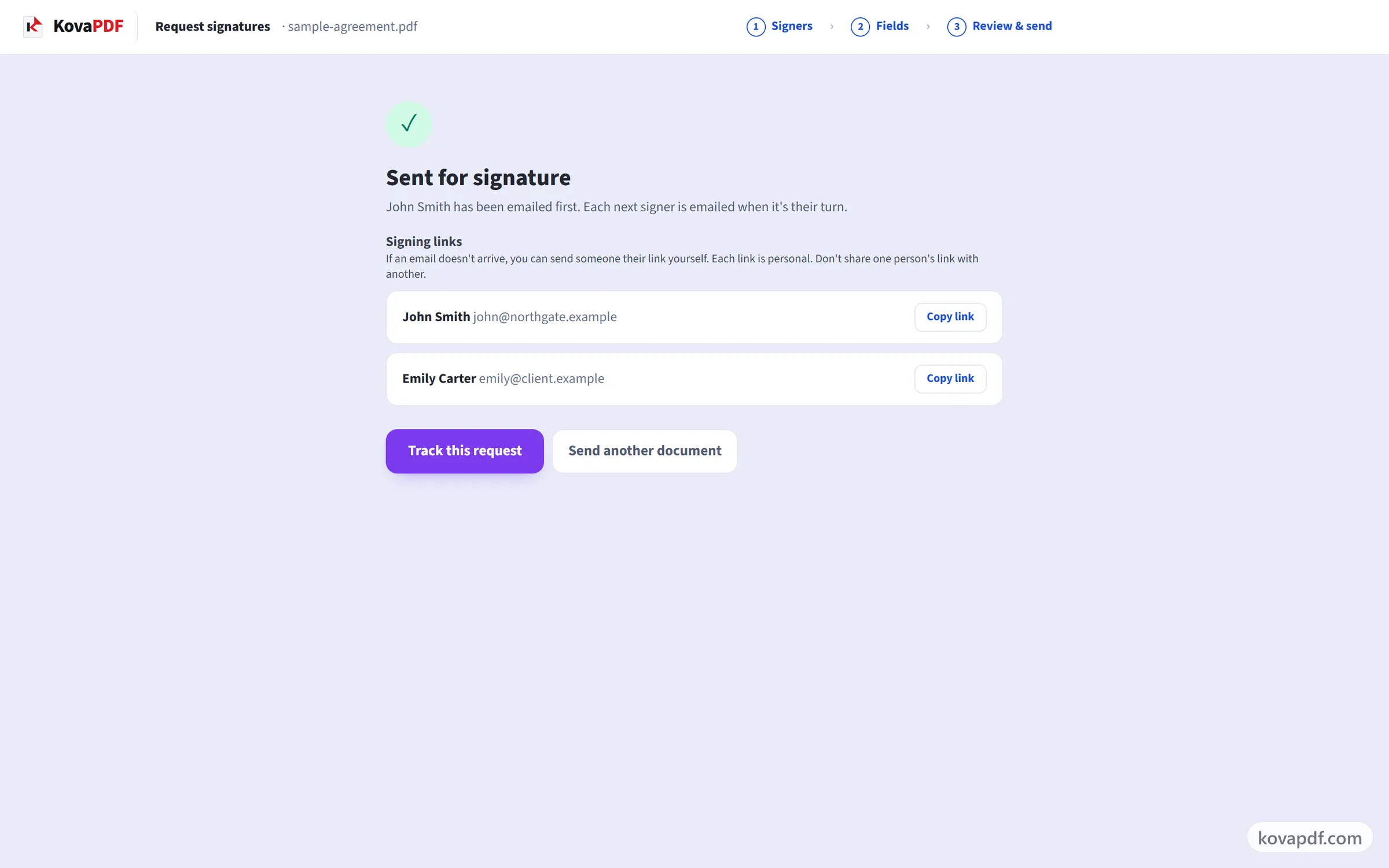
Everything Request Signatures can do
Send a document to other people to sign, free, with no account needed for them, and get back a signed copy sealed with a trusted timestamp and a certificate of completion.
Who signs, and in what order
- Several recipients, one after another or all at once
- Roles: signer, approver, witness, and people who only get a copy
- A signer can hand their turn to someone else, with the reason recorded
- Host a signer in person on your own device
- Signers need no account and install nothing
What they fill in
- Signature, initials, name, date, text and checkbox fields
- Dropdown lists and radio buttons, with the choices you write
- Ask a signer to attach a file, hashed into the certificate of completion
- Calculated fields worked out from the numbers they type
- Show a field only when an earlier answer calls for it
- Place fields anywhere, for any recipient, on any page
- Send a PDF, or a Word file or photo that is converted first
- Anyone who cannot sign can decline, with a reason
Staying in control
- Access code per recipient
- Automatic and manual reminders
- An expiry date, after which the link stops working
- See who opened and who signed, and cancel or delete at any time
- Your own name, logo and colour on the signing page and the emails
Proof at the end
- Certificate of completion with times, IP addresses and devices
- The finished file is sealed with a trusted timestamp, so later changes show
- Everyone gets the signed copy
- Check the result yourself with our free Verify tool
Compare the work you need to do
| Question | KovaPDF | Signaturely |
|---|---|---|
| Prepare a request | KovaPDFUpload a file and assign each person their fields. | SignaturelyUpload a file or choose a template, then add required fields. |
| Recipient journey | KovaPDFA private email link opens the browser signing flow. | SignaturelyAn email link guides the recipient through required fields. |
| Keeping records | KovaPDFDownload the completed PDF and completion certificate for your own archive. | SignaturelyStore paperwork together for later access. |
Prices checked: October 2026.
The honest answer
Which one should you use?
 Where KovaPDF is better
- You have a ready PDF to send. Prepare that specific request immediately using the working tool above.
- You want to try before registering. Place fields first and use a free account at sending. Signers never need one.
- You file documents outside the signing service. Download the finished PDF and completion certificate into your own records.
Choose Signaturely if…
- Your team shares established templates. Signaturely describes creating templates and sharing them with teammates.
- A central document library is part of the routine. Its homepage describes storing paperwork together for later access.
- You prefer its guided recipient flow. Signaturely specifically describes walking signers through required fields. Test that experience with your audience.
Prices checked: October 2026.
Simplicity depends on what you repeat
A Signaturely alternative should save steps in the work you actually do. For a single agreement, starting from a PDF may be enough. For repeated agreements shared across a team, the template library and filing routine may be the real reason the current tool feels simple.
Signaturely's homepage describes upload, field preparation, an email link and guided signing. It also describes team template sharing, automatic reminders and a central place for documents. Compare these separate jobs instead of deciding from a short feature count.
Try an ordinary client agreement
For a fictional example, Iris at Pebble House Tutoring has a final lesson agreement. She uploads the PDF here, adds the parent's name and email and places signature and date fields. Iris uses a free account to send within a limited allowance. The parent signs through a private link without registering.
Before sending, Iris reads the whole PDF as the parent will see it. She checks that the pupil's name and lesson schedule belong to this family. Reusing a previous file without reviewing its content is a common source of mistakes that no signature tool can fix.
Shared templates need a separate trial
Do not assume another service's template fields transfer with a downloaded PDF. Start from a clean source file, recreate the fields and check each recipient assignment. If several teammates depend on shared templates, test that routine together before retiring the existing library.
The request signature page explains preparing a request and sending from a free account. Send PDF for signature gives a wider overview. Both use the same real Request Signatures tool as this page.
Agree where the signed copy will be kept. KovaPDF's completed requests are not permanent storage, so save the finished PDF and completion certificate. Read how to inspect a signed document if you need to distinguish a visible signature from the digital evidence inside the file.
Prices checked: October 2026.
Questions
Signaturely alternative: common questions
Is the basic request flow similar to Signaturely?
Both start with a document and recipient fields. Signaturely's homepage describes email delivery and guided signing; the working KovaPDF flow is above.
Can I import a Signaturely template?
This page does not import template settings. Use the original PDF, recreate fields and verify recipient assignments.
Do parents or clients need an account?
KovaPDF recipients never need one. The sender needs a free account when sending.
Will a signed request stay here permanently?
No. Download the completed PDF and completion certificate for your own records. Finished requests are subject to retention.
Why might Signaturely still fit my team?
Its shared templates, central document storage or guided signing experience may already suit your routine. Test those with the people who use them.
Prices checked: October 2026.
Keep going
Related tools and pages
Request SignaturesSend a PDF to others to signSend a PDF for signatureUpload, add signers, place fields, send: the three steps, with the tool on top.How to read a signature check result: intact, who signed, and trustedA signature check result has several lines because each one means something different. What every line tells you, and which one decides whether to accept.
Signaturely is a trademark of its owner. KovaPDF is not connected with, or endorsed by, Signaturely. The facts above come from Signaturely's own public pages. This page compares products; it is not legal advice.