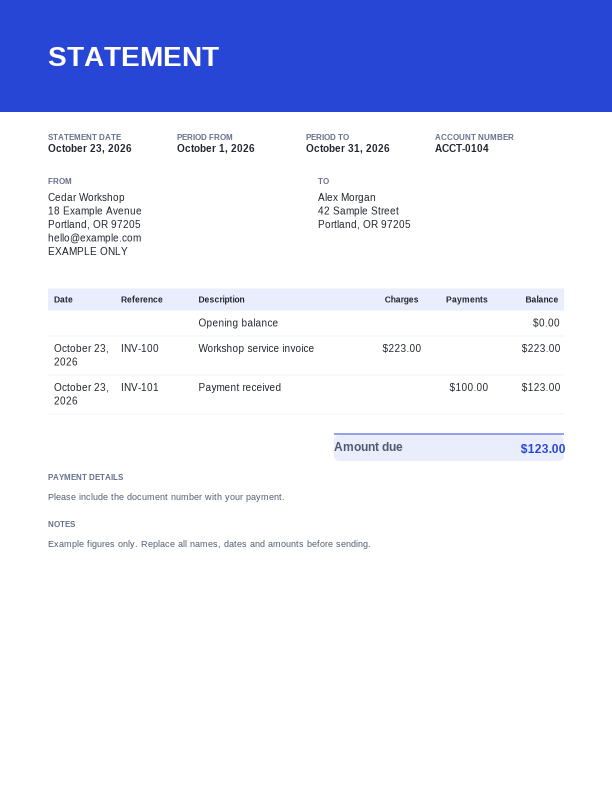
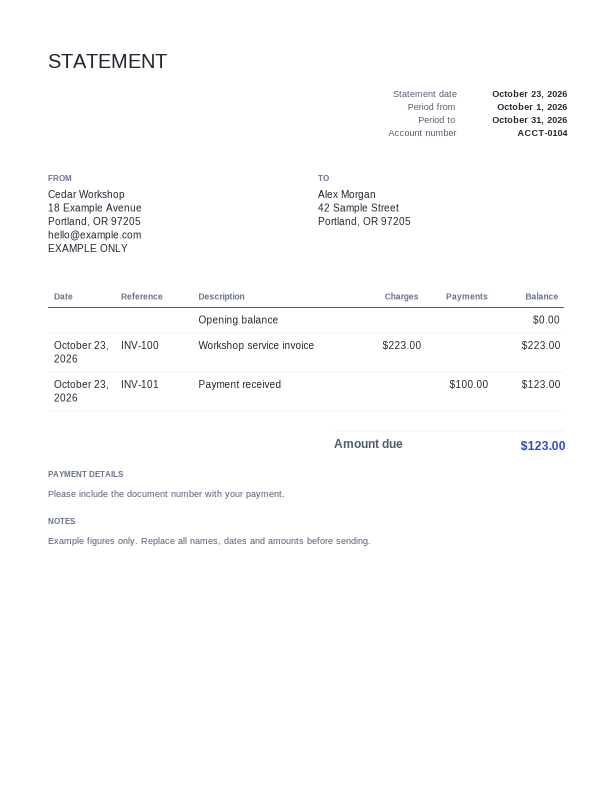
Preview every page
Read the document as you fill in the form.
Bring invoices, payments, credit notes and adjustments into a dated account summary. Start with an opening balance and review the running balance.
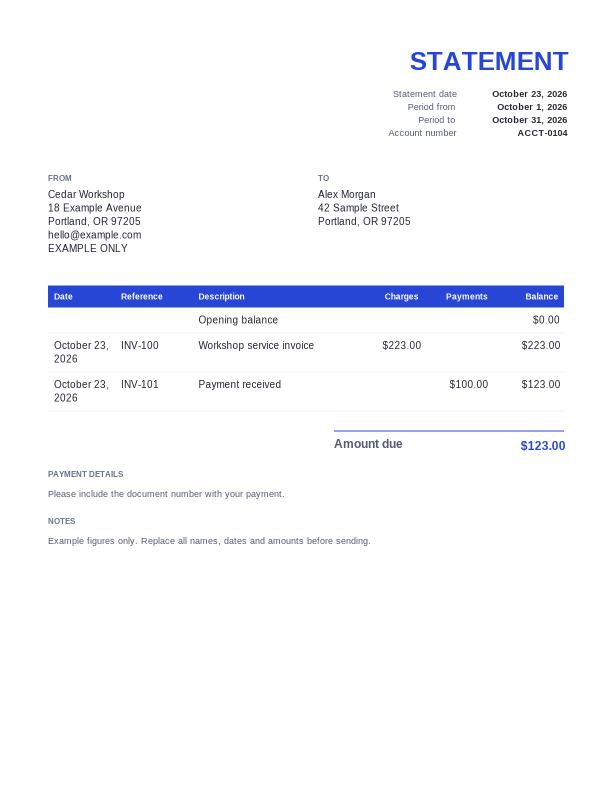 Example document. Edit every detail.
3 things missing
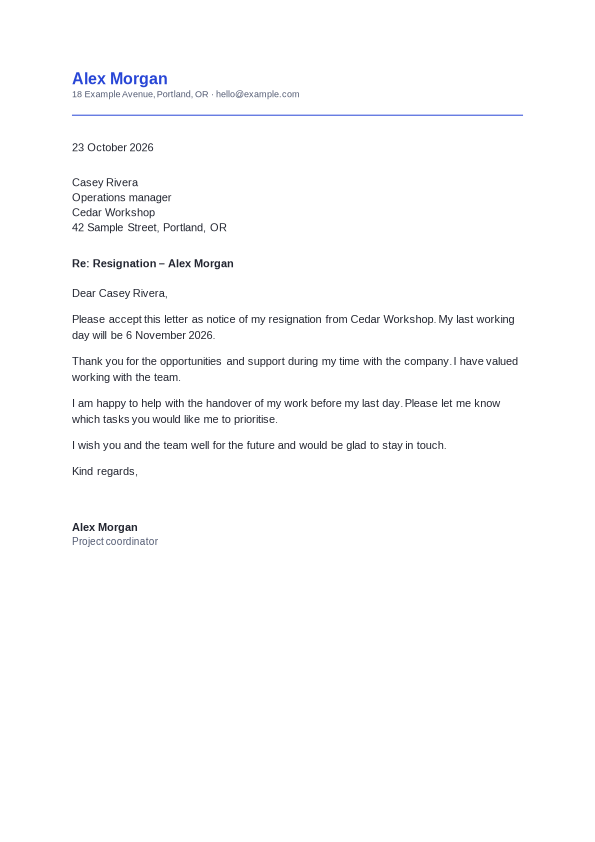
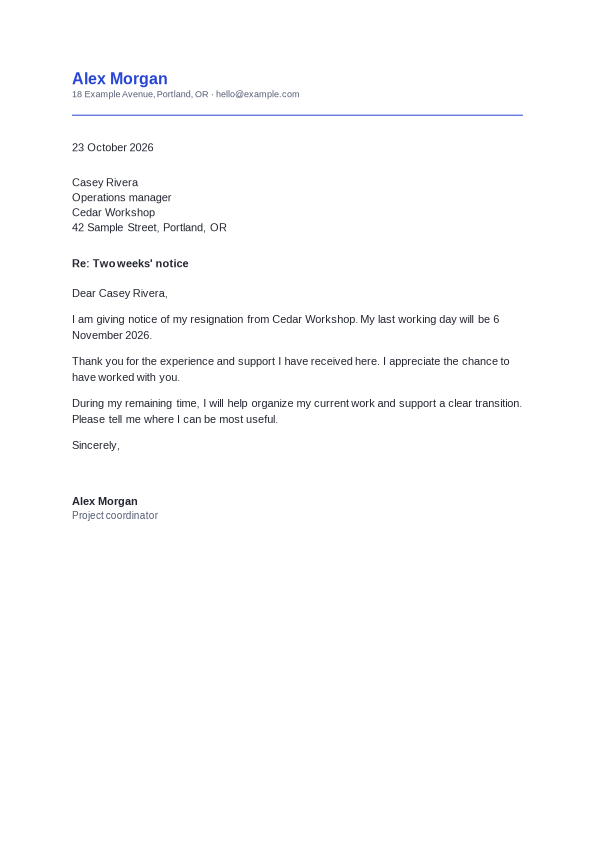
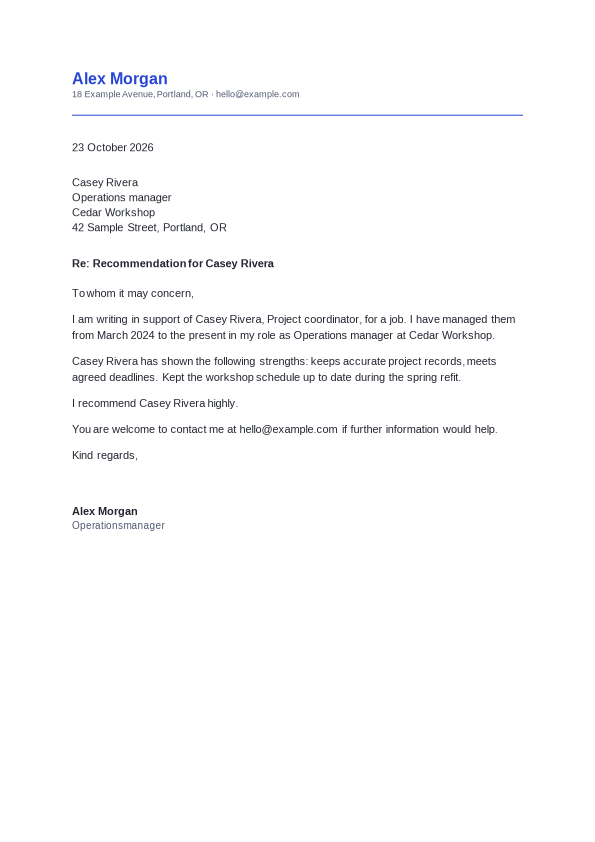
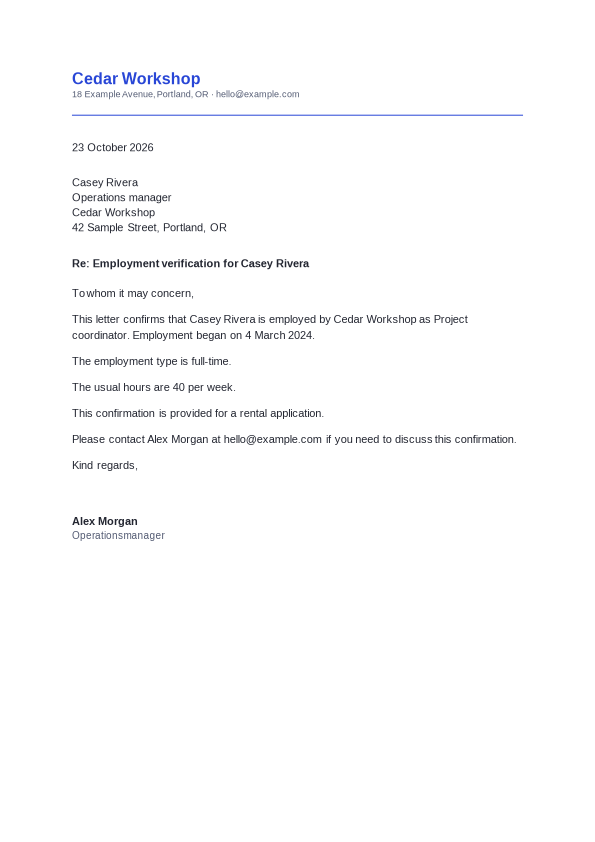
These pictures show the same document generator with fictional example details.
Replace the example names and contact details in the form. Keep only information that belongs in this document.
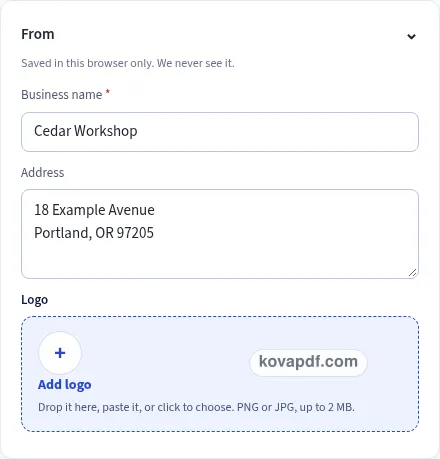
Check the page preview after changing the text. Read the amounts, dates and page breaks before exporting.
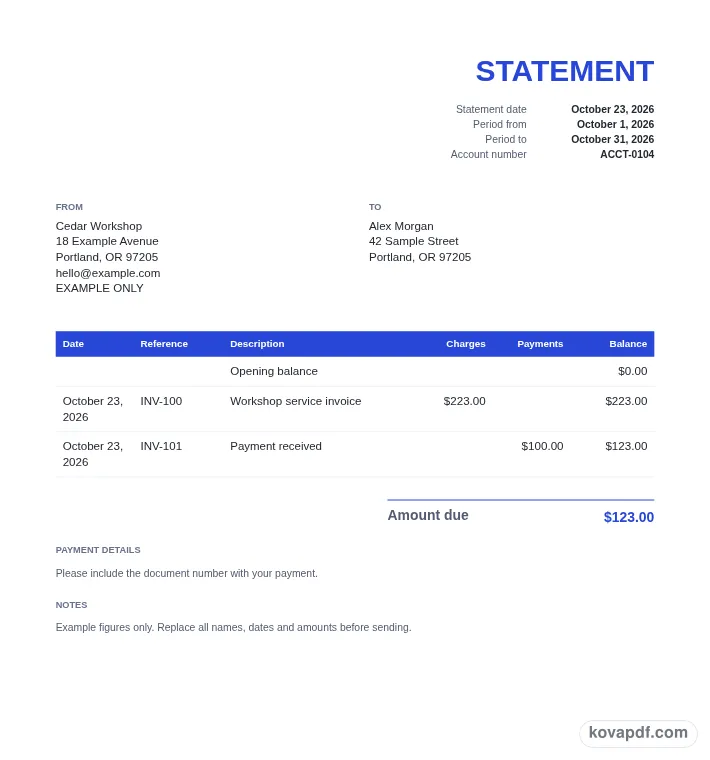
Use the download controls above the preview. Open the saved file and give it one final read before sharing.

Read the document as you fill in the form.
Compare Classic, Modern and Minimal layouts.
Save a copy when the names and figures are right.
The generator works on this device.
Use A4 or Letter and check the page breaks.
Return to the form to correct a detail before sharing.
These are fictional details. Choose an example, then replace them with your own.
Enter your business and the customer, then choose the statement date. Add an optional period and customer account number. Set the opening balance to the amount you want the listed entries to start from, keeping its sign clear.
Enter each row's date, type, reference, description and amount. Choose Invoice, Payment, Credit note or Adjustment. The printed statement sorts rows by date while preserving their order within the same date, so review the dates before checking the final balance.
Follow the running balance from the opening row through the final entry. Compare the result with your own account record. The closing box shows Amount due, or Credit balance when the result is negative. Download after that comparison is complete.
A statement of account groups the entries you want a customer to review into one dated summary. It is useful when a conversation needs more context than the total on one invoice. By showing invoices, payments, credit notes and adjustments in order, the statement gives both sides a way to follow how the closing figure was reached.
Begin with the business issuing the statement and the customer receiving it. Check the account number if you use one, especially when similar customer names appear in your records. The optional period fields let you describe the span covered by the document. They are separate from Statement date, which identifies the date of the summary you are preparing.
This generator is an entry form, not a connection to an account system. It uses the rows and opening balance you provide. Before copying data in, decide which records belong in the summary and how the opening amount relates to them. That review helps you avoid including the same invoice in both the opening balance and the list of new charges by mistake.
Invoice entries add to the running balance. Payment and Credit note entries subtract from it. Enter those three types as positive amounts and let the type determine their direction. Adjustment can be positive or negative: a positive adjustment adds to the balance, while a negative one reduces it. Keep the description clear enough to explain the adjustment when someone reads the statement later.
Each row has a reference separate from its description. An invoice number, payment reference or credit note number can help the customer locate the corresponding record. Use the description to supply readable context rather than repeating a long reference in several fields. The PDF separates charges and payments into columns, with the resulting balance shown after each row.
Rows are sorted by date before printing. Entries sharing a date keep their order from the editor, which lets you arrange a same-day sequence deliberately. Read the preview after changing a date because the affected entry may move to another position in the statement. The running balance follows that printed order. You can move rows in the form when you want to change the relative position of entries on the same day.
Opening balance is the first row printed in the table. It starts at zero unless you enter another figure. A negative opening balance is allowed, so check the sign before adding transactions. Follow the balance after each row, comparing a few steps with your own records rather than only comparing the final figure. Two offsetting entry mistakes can leave a closing total looking right while individual rows remain wrong.
The final box is aligned to the right. It says Amount due when the closing balance is zero or positive. When the closing balance is negative, the label changes to Credit balance and the figure is shown as an absolute amount. This makes the direction visible in words as well as in the calculation. Inspect that label before sharing the file.
Payment details and Notes follow the account table and closing figure. Add the information the customer needs to understand or act on this particular summary, keeping it concise enough to scan. The statement does not perform tax calculations or change the source invoices. It presents the entered account movements in the currency selected through Country.
Choose a design and inspect every page when there are many rows. The table heading repeats, keeping the running balance column identifiable on later pages. Save the finished PDF with the account records you use, then share the reviewed version through your usual process. Browser saving can preserve a draft and business details on this device, but it is not a shared customer ledger. Clear the stored draft after working in a browser that other people use.
It begins with Opening balance, then adds invoice entries and positive adjustments. Payments, credit notes and negative adjustments reduce it. The PDF prints the balance after each dated row so you can follow the calculation to the closing figure.
Enter Payment and Credit note amounts as positive figures. Their row types make them subtract from the balance. Adjustment is the type that accepts either sign, allowing you to add or reduce an amount through an explicitly described entry.
The statement sorts them by date before printing. Rows on the same date retain their order from the editor. Check the preview after editing a date so you can see where the entry appears in the resulting sequence.
The closing box changes its label to Credit balance and displays the absolute value of the negative result. The running-balance column still lets you follow the account movements that produced it. Read the final label together with that figure.
Enter that starting figure as Opening balance and check it against your own account record. It prints as the first table row. Add the later entries you want included, taking care not to list the same starting amounts again.
It makes a PDF from the information you enter. It does not connect to a customer ledger, change invoices or record payments in another application. Keep the reviewed statement with the source records that support its rows.